

On our platform, assignments fall into two main groups: Quizzes (including homeworks and exams) and Reports.
When you customize your assignments, students get clear feedback that helps them learn faster and fix mistakes early. Here is how to build and tweak your assignments step by step!
1. Quizzes, Homeworks, & Exams: Auto-Graded Assignments
Even though we use the same tool to build quizzes, homeworks, and exams, you use them in different ways.
Homeworks and Quizzes: These are low-stakes practice assignments. They help students check what they know and learn as they go.
Exams: These are high-stakes tests. They show how well students know the material at key checkpoints.
All of these assignments are 100% auto-graded by the computer. Grades go straight to your gradebook when the due date passes.
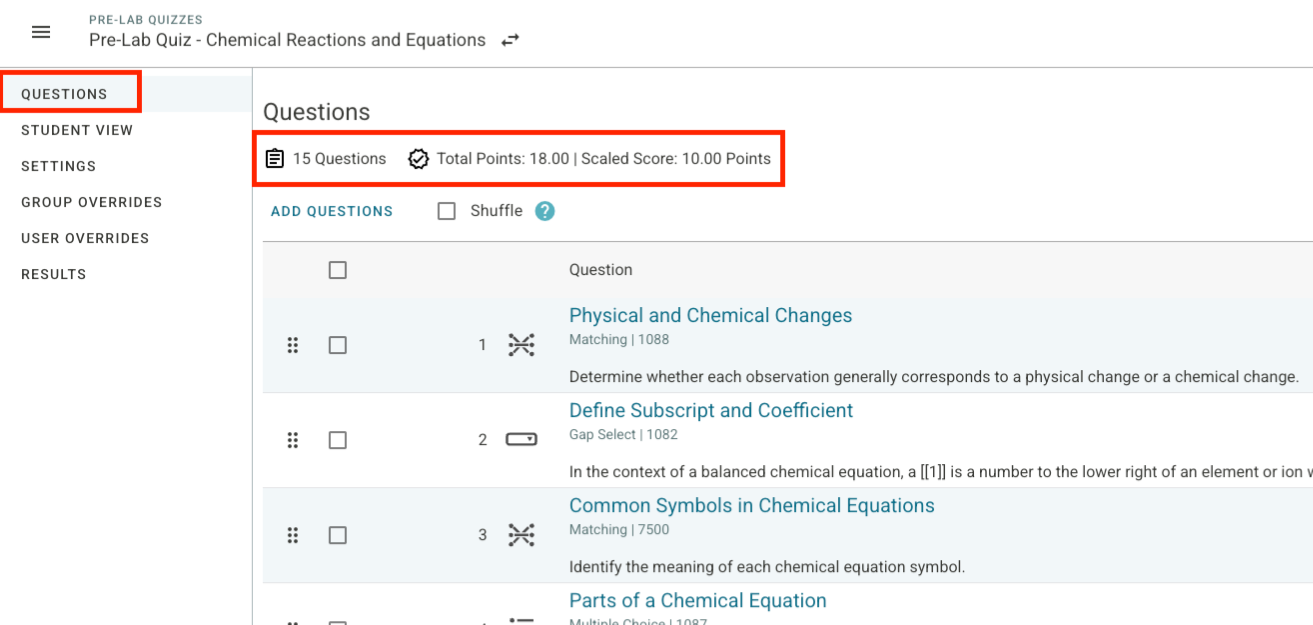
When you open a quiz, homework, or exam, you will land on the Questions Tab. The top of the page shows a quick summary: your total questions, total points, and scaled score
Changing Your View, Moving Questions, & Using Question Pools
Switch Views: Use the button in the top right corner to switch between List View (best for organizing questions) and Question Preview.
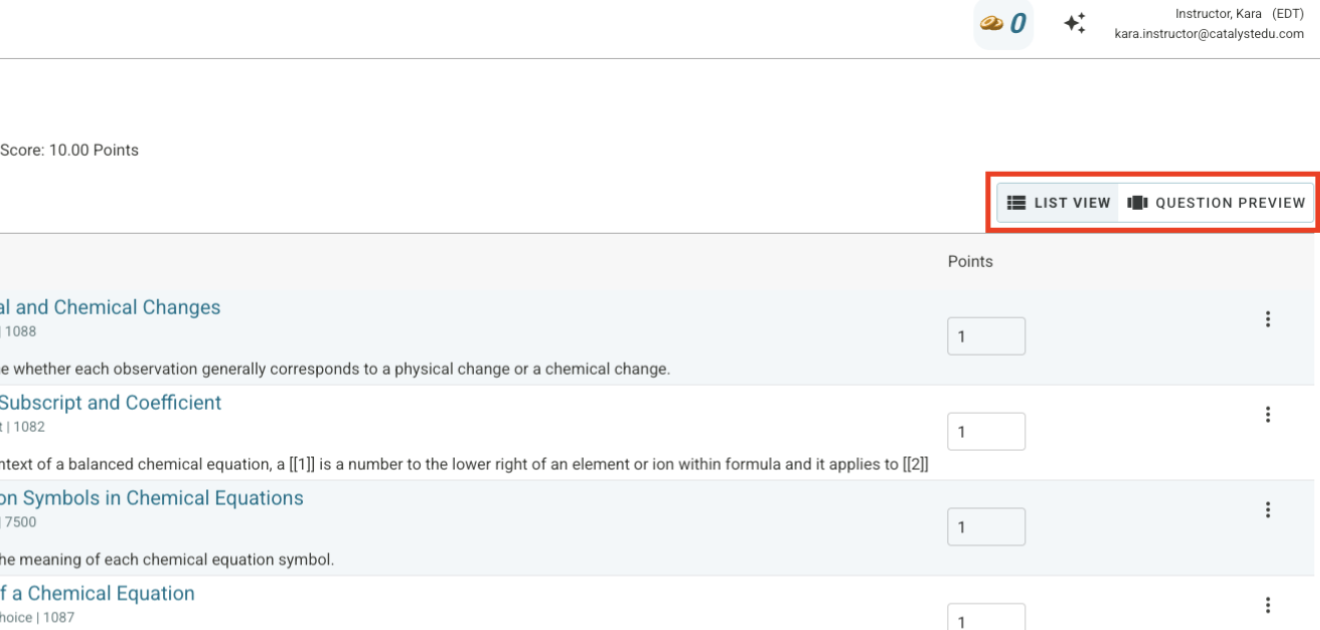
Question Preview: This shows you the question just like a student sees it. You can also view the correct answer, hints, and explanations.
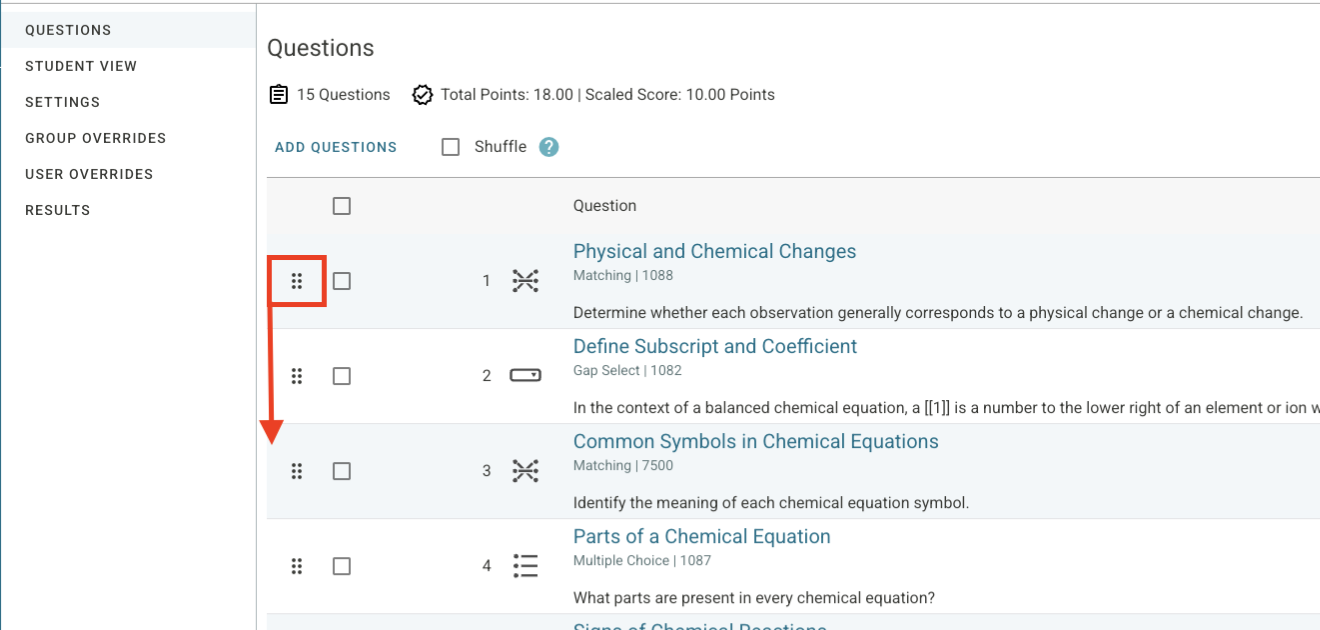
Drag-and-Drop (List View): In List View, you can reorder questions easily. Click the six-dot handle (⋮⋮) next to a question and drag it where you want it.
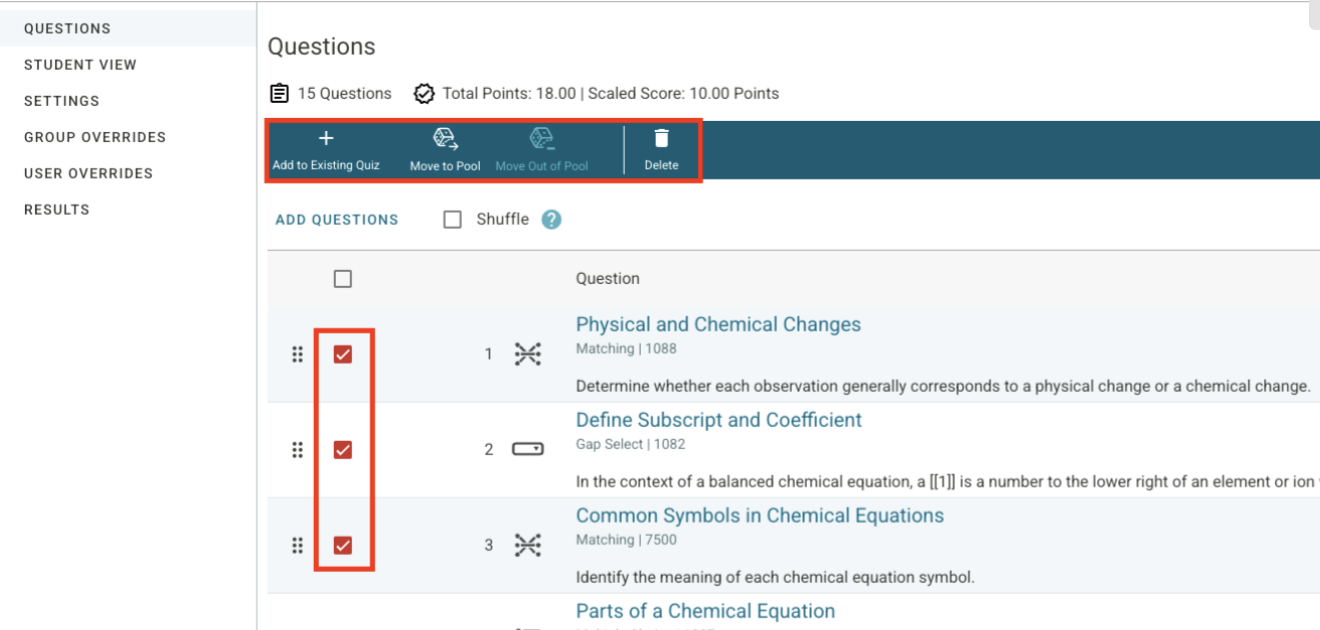
Question Pools & Editing Multiple Questions: In List View, check the boxes next to questions to select them. A teal action bar will pop up at the top. You can use it to move questions into a pool, add them to another quiz, or delete them all at once.
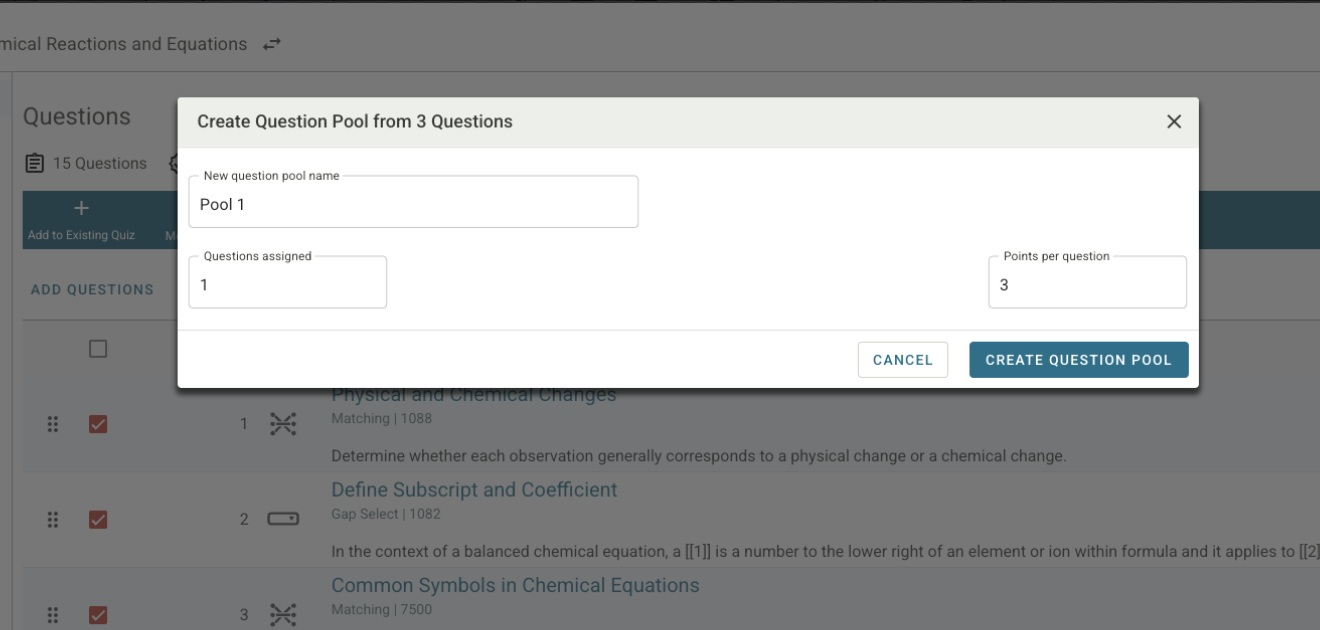
Setting Up Question Pools: When you make a new question pool, you can:
Give the pool a Name.
Choose which questions go inside it.
Set the points per question for any question pulled from that pool.
Platform Highlight: If you use our platform during live lectures or recitations, you can easily add, move, or edit questions on the fly before or during class!
Adding Questions to an Assignment
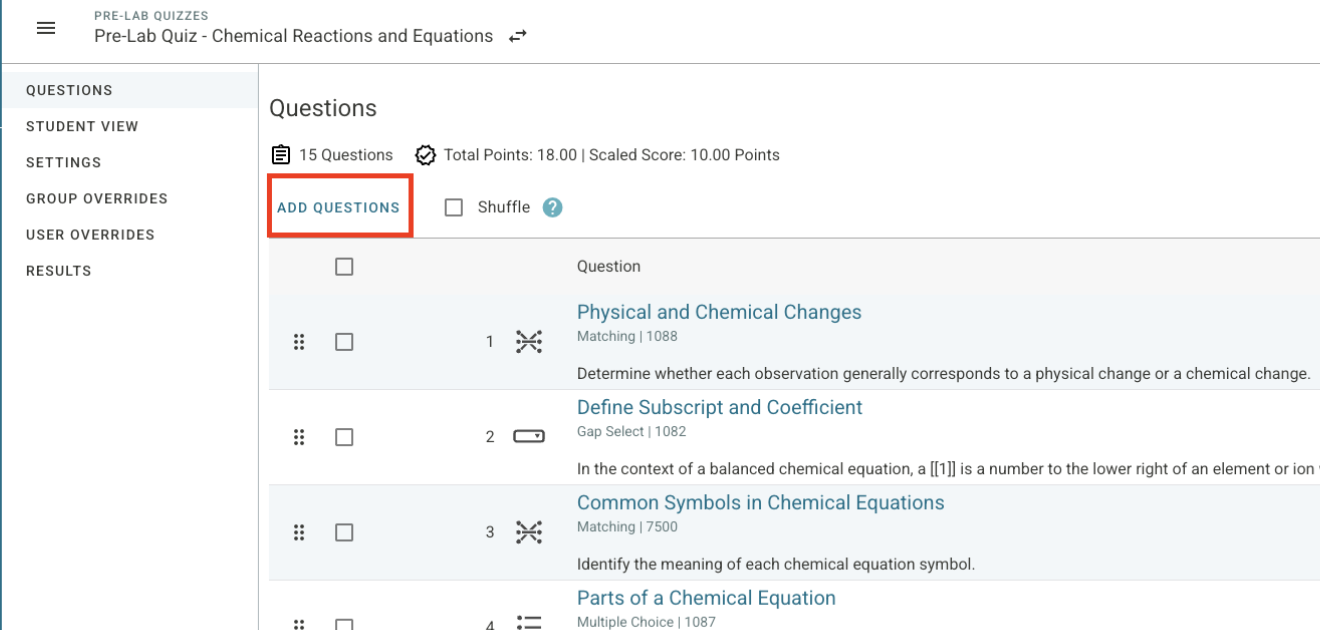
Click the Add Questions button in the top left corner. You have two options:
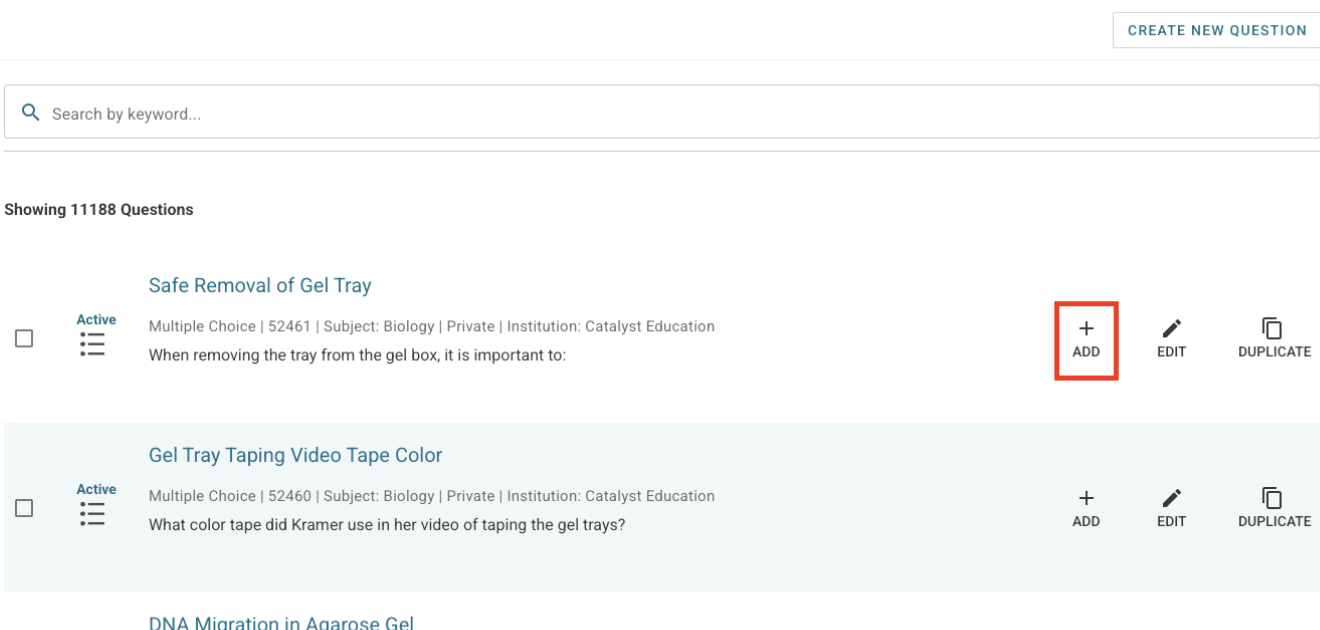
Option 1: Pick from the Public Quiz Bank: Filter questions by subject, topic, or question type. Click the plus sign (+) to add a question to your assignment.
Option 2: Make Your Own Question. Click Create New Question in the top right corner. Pick one of the following eight question types:
Multiple Choice
True/False
Matching
Short Answer
Numeric
Calculated
Multi Answer
Gap Select
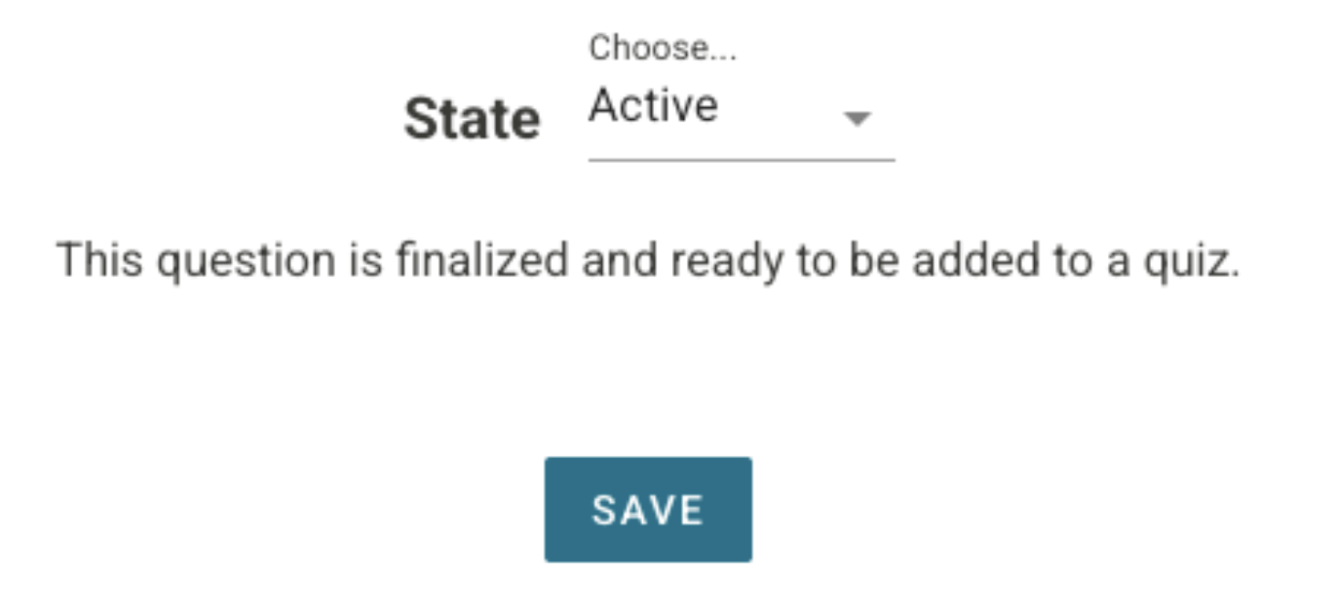
Fill in the question details on the right side. Change the status from Draft to Active, click Save, preview it, and click the plus sign (+) to add it to your quiz!
Important Rule: Once a student starts taking a quiz, homework, or exam, you cannot add or delete questions. Make sure your test is ready before students start!
Editing and Deleting Questions
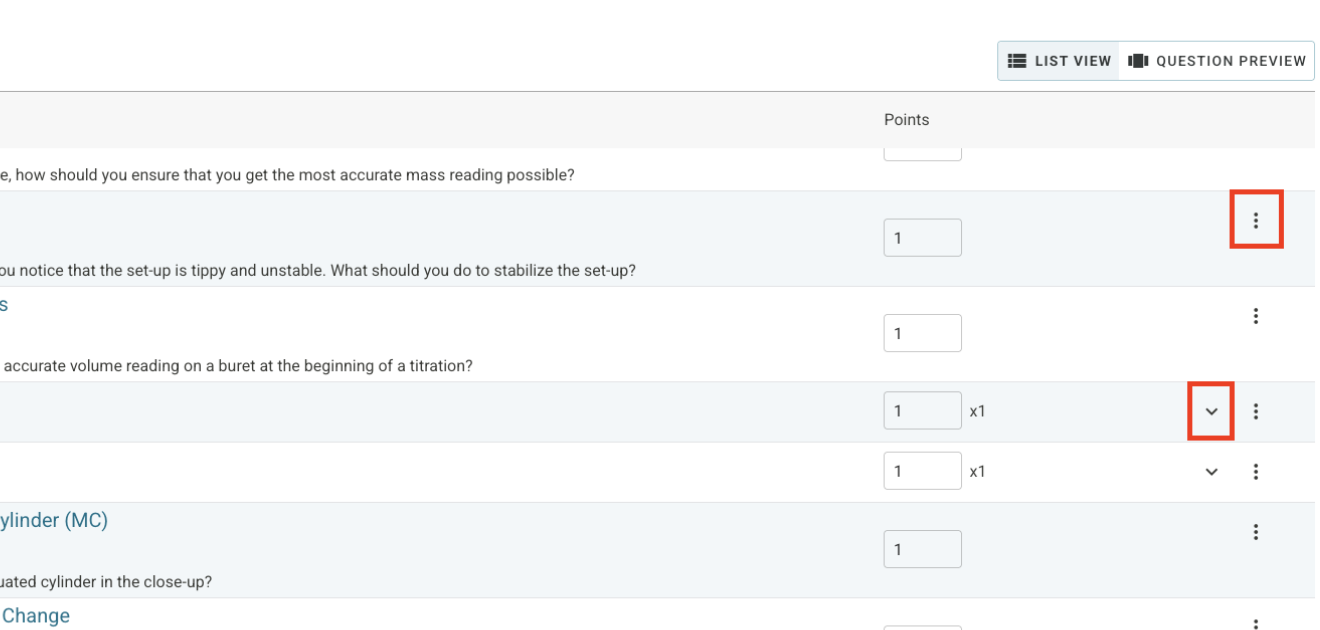
Single Question: Click the three dots (...) next to a question and choose Edit Question or Delete Question.
Inside a Question Pool: Click the down arrow (▼) to open the pool. Then click the three dots (...) next to the question you want to edit or delete.
Shuffling Questions
Check the Shuffle box to mix up the question order for every student. This helps prevent cheating.
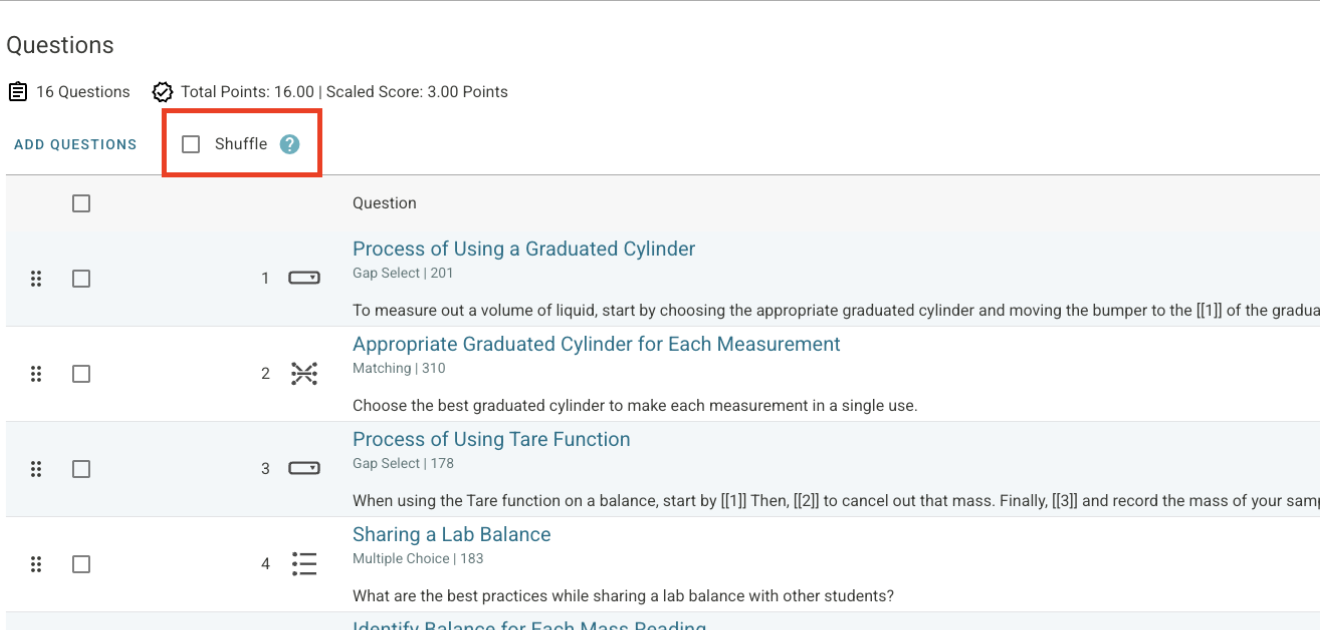
Tip: If you like to review questions together in class (like saying "Let's look at Question 3"), leave shuffling turned off.
Choosing Feedback Settings
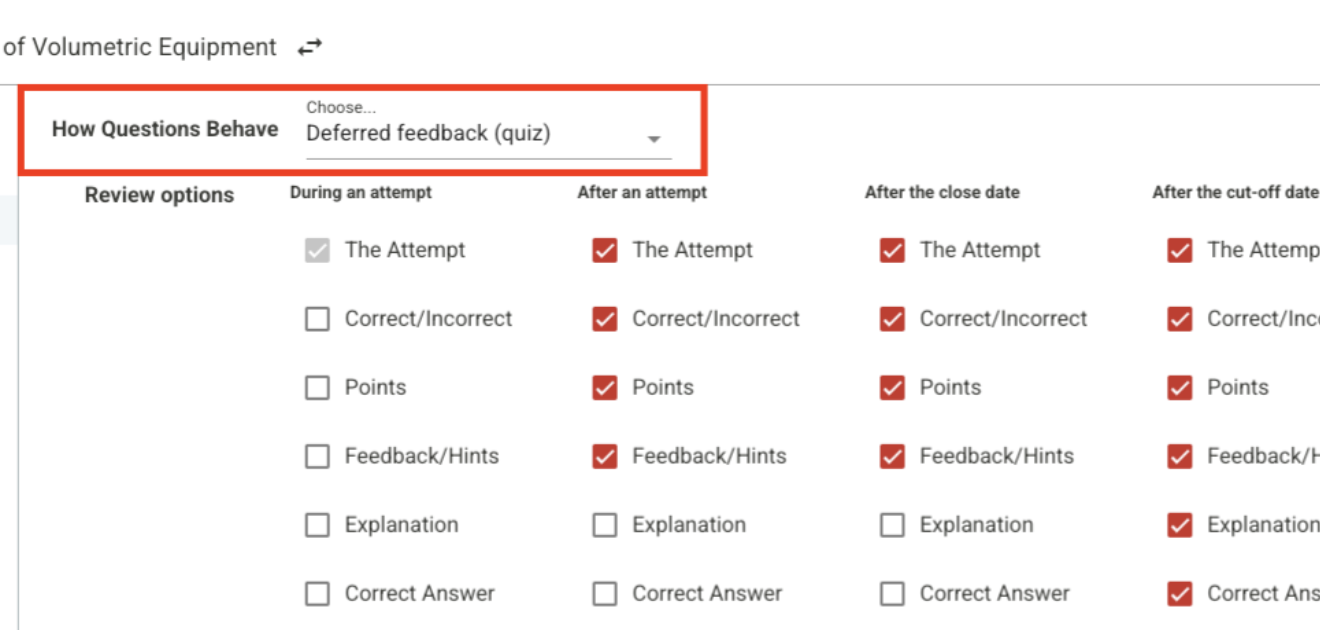
Go to the Settings tab inside your quiz to choose when students see their results:
Immediate Feedback (Best for Homework): Students get instant hints and answers after each question.
Deferred Feedback (Best for Quizzes and Exams): Grades and correct answers stay hidden until students submit the whole assignment.
2. Reports: Complex Lab Workflows & Analysis
Reports handle bigger lab assignments. They give students a place to enter lab data, run calculations, and upload files.
Reports Have Two Main Sections
Section 1: Validated Section (Data Entry): Students type in their raw lab data here. The computer auto-grades the whole section at once. If the data is wrong or missing, the system stops the student from moving forward.
Note: The questions in this section are locked into the system. If you want to change anything here, contact your Faculty Success Manager (FSM). Our Content Team will update it for you!
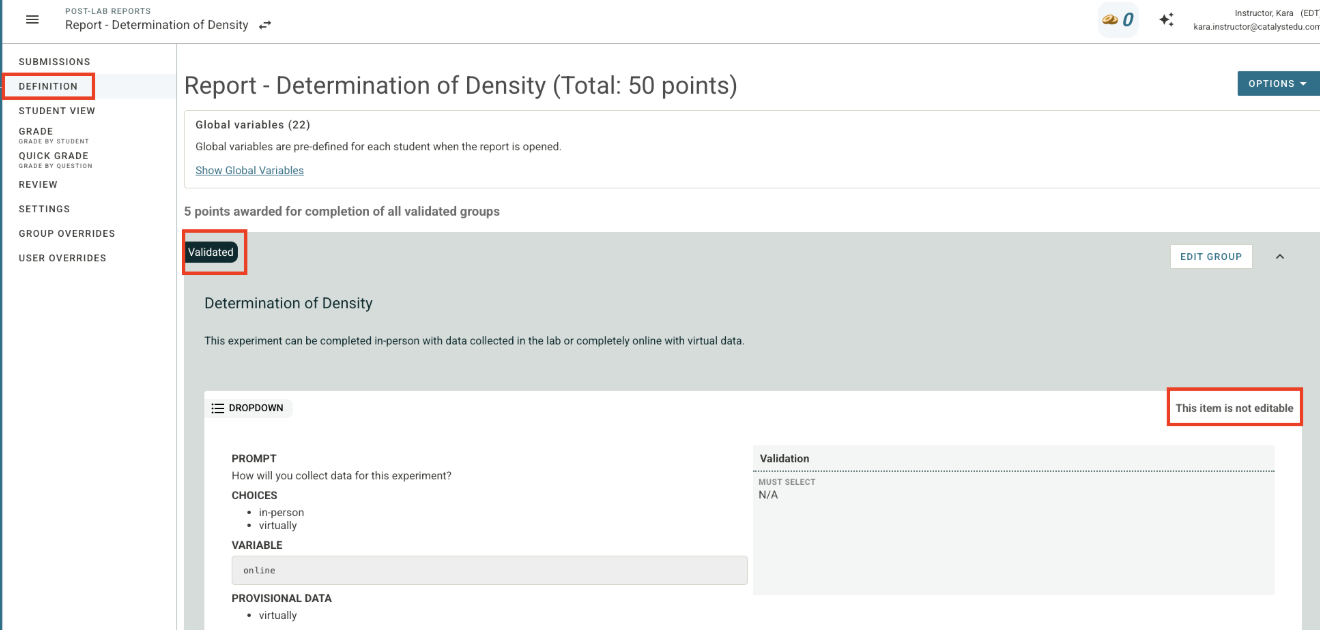
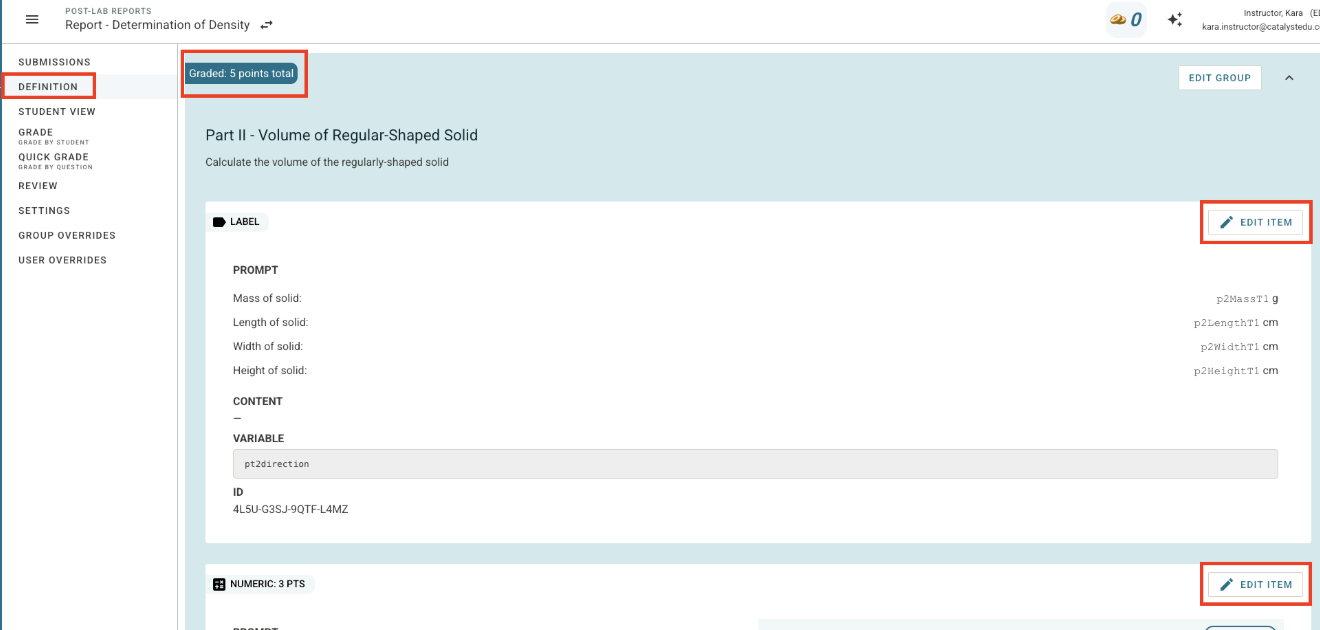
Section 2: Graded Section (Calculations & Analysis): Students do math, answer open questions, and show what they learned. Each question gets its own points. You can edit most of this section yourself on the Definition Tab.
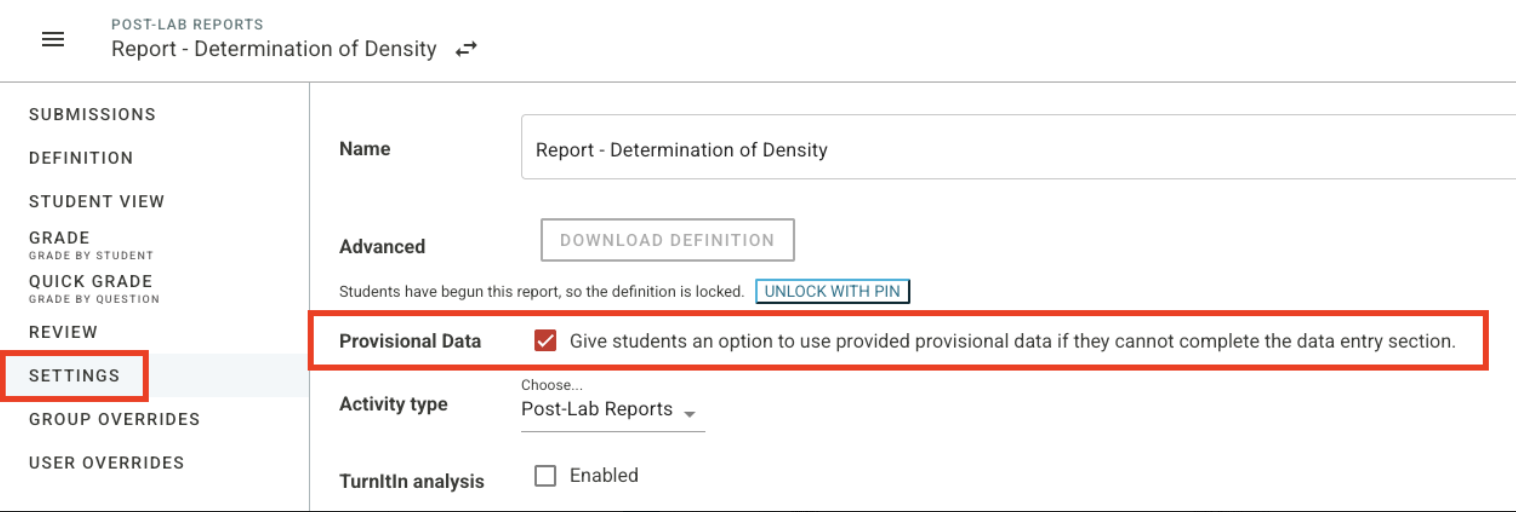
Reports can also use Provisional Data (backup data for students who missed lab) or Virtual/Visual Data (photos or videos for remote learning).
Customizing Reports on the Definition Tab
You can edit almost everything in the Graded (Calculations) section from the Definition Tab:
See Question Types: Look at the top left corner of a question to see its type (like File Upload, Essay, Numeric, Label, or Table).
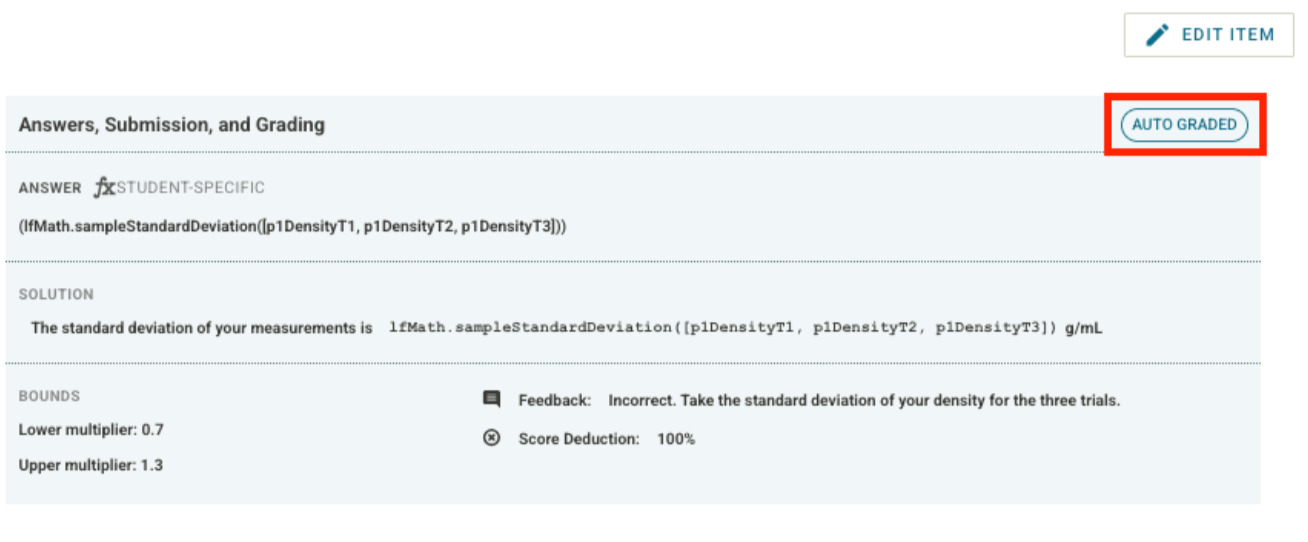
Check Grading Methods: Look at the blue box called Answers, Submission, and Grading. A small badge shows if the question is Auto-graded, Manually-graded, or Graded with AI Assist.
Edit Labels: Find the label, click Edit Item, and change the text prompt.
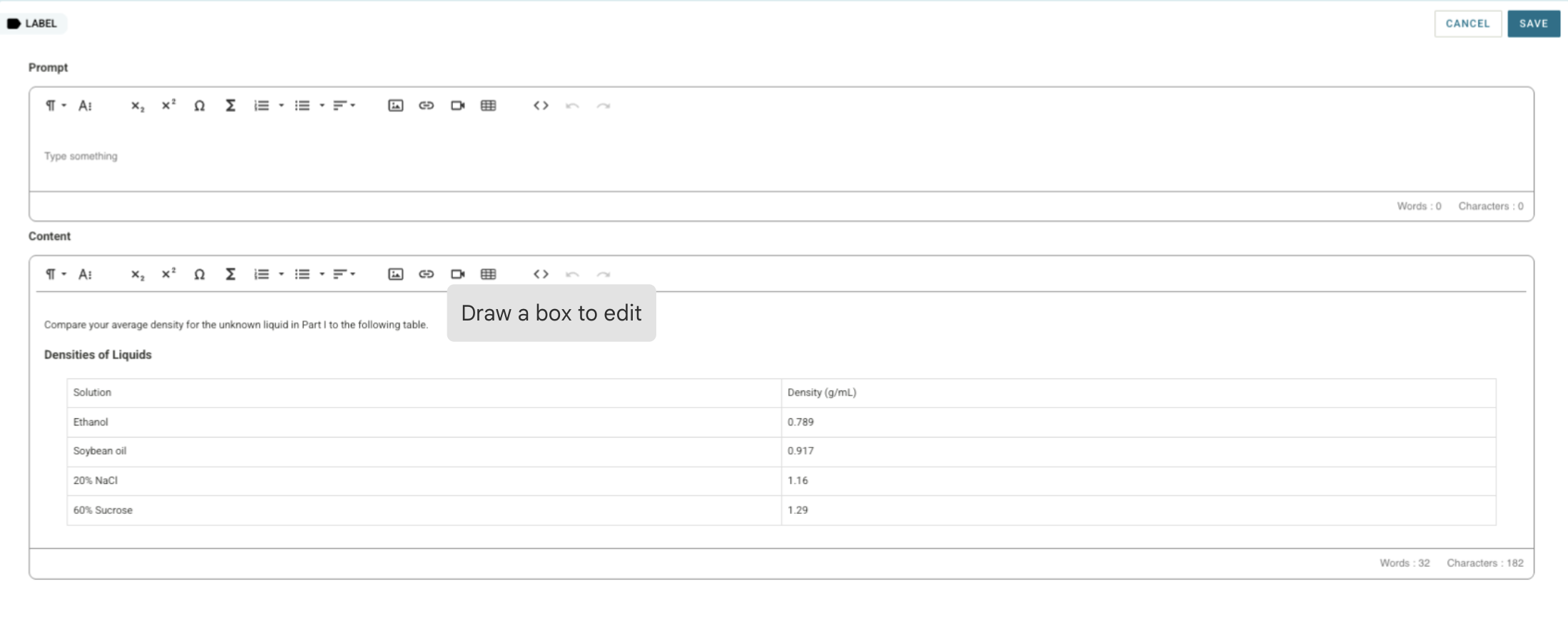
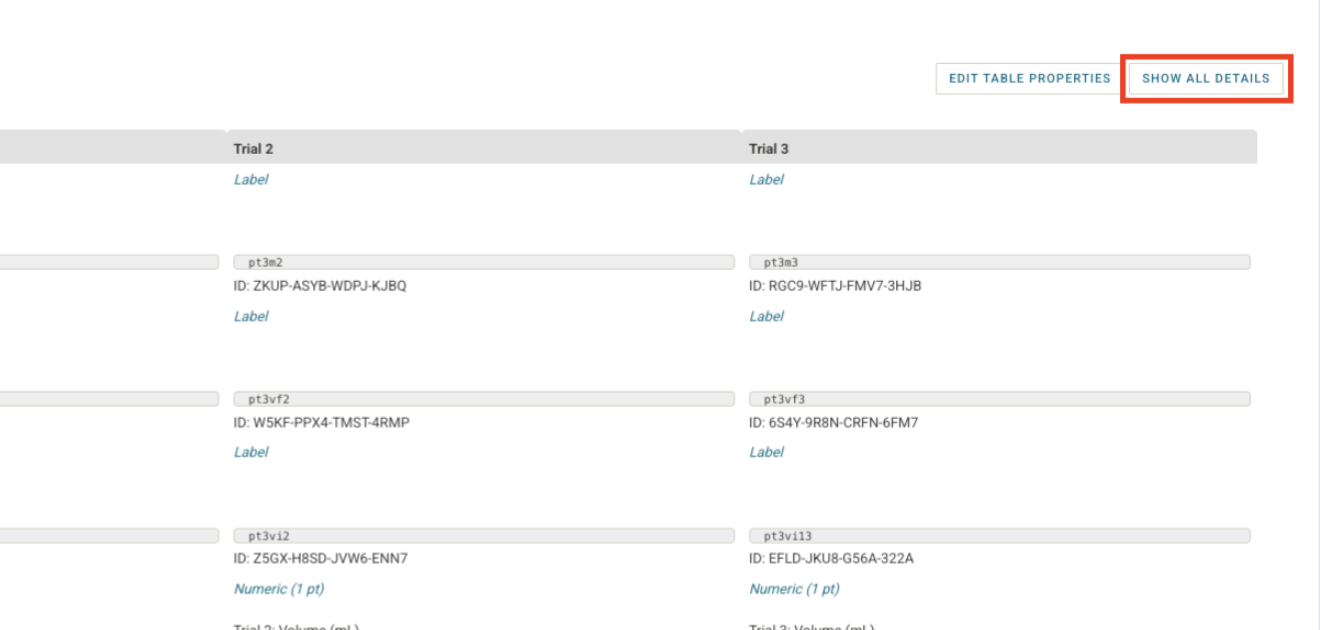
Edit Tables: Go to the table and look at the top right corner:
Edit Table Properties: Change the title and caption.
Show All Details: Expands the table into individual cells. Click Edit Item next to any cell to change it.
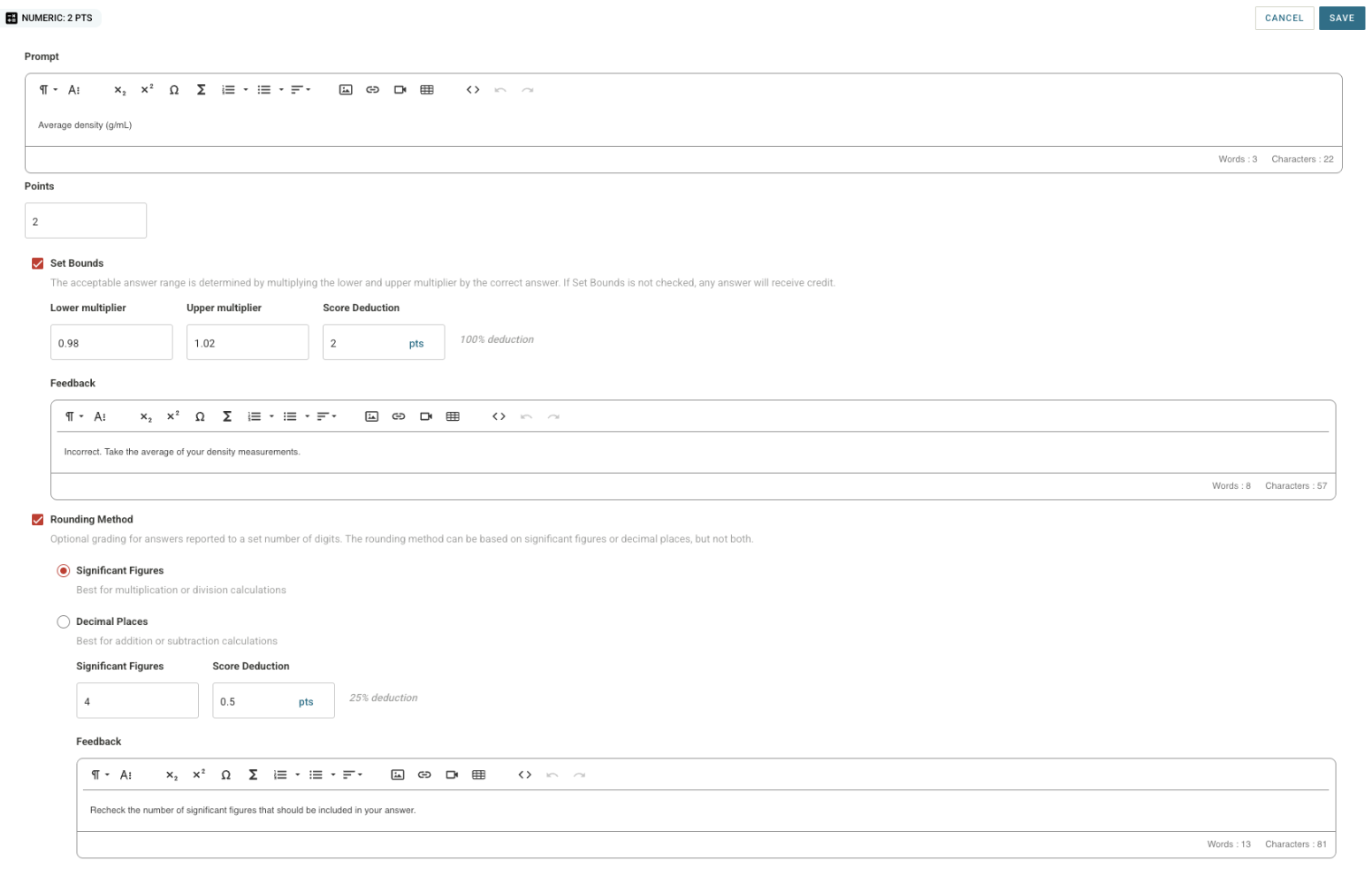
Edit Numeric Questions: Click Edit Item to change the prompt and points. You can use two main settings:
Set Bounds: Sets an acceptable answer range using multipliers. You can add point deductions and custom feedback if answers fall outside this range. (If left unchecked, any number gets full credit!)
Rounding Method: Grades students on Significant Figures or Decimal Places (choose one, not both). You can also add point deductions for rounding errors.
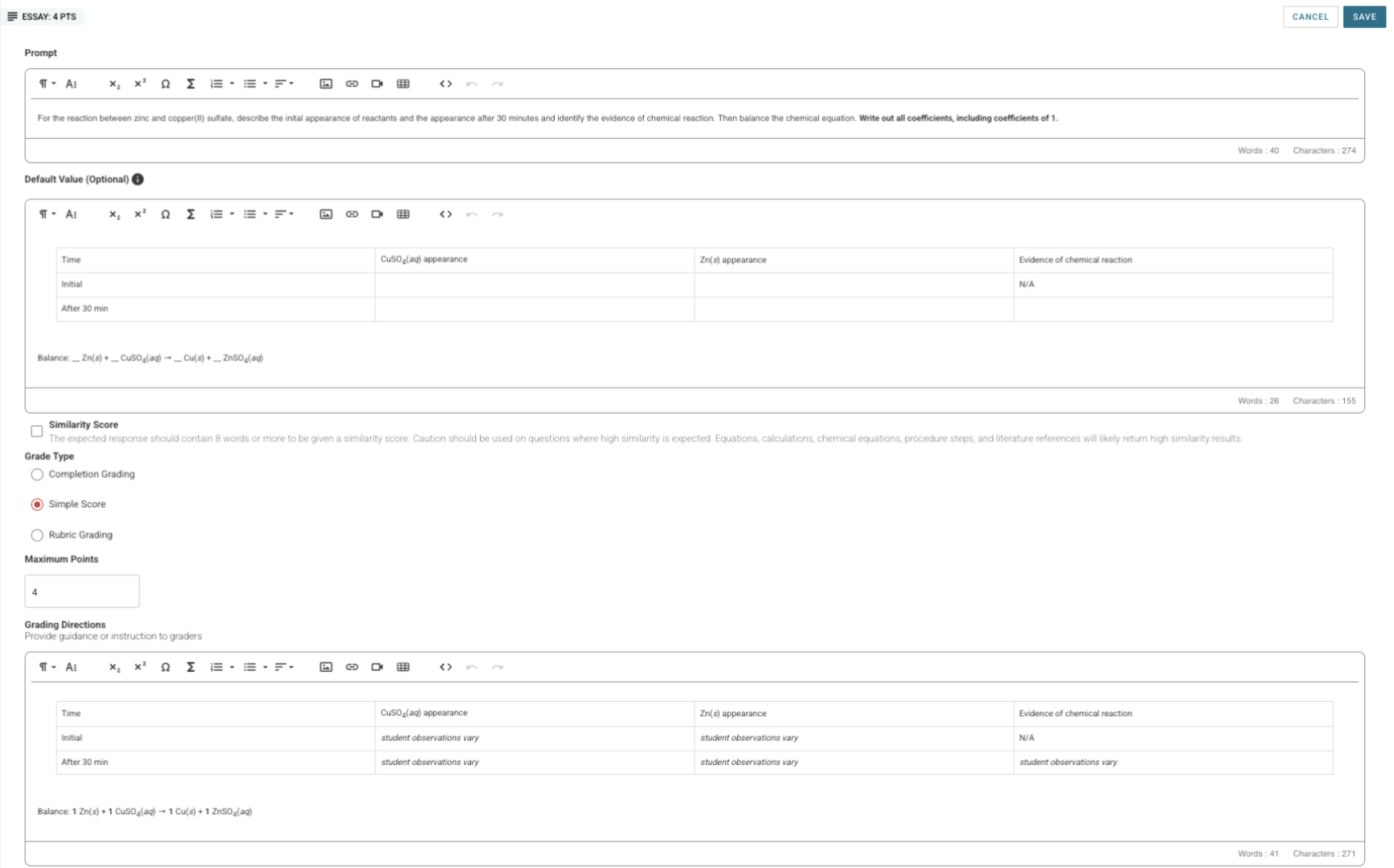
Edit Essay Questions: Click Edit Item to update the prompt, turn on similarity checks, add instructions for graders, and choose a grading type (Completion, Simple Score, or Rubric).
Edit File Upload Questions: Click Edit Item to set file limits, turn on Turnitin plagiarism checks for typed documents, add instructions, and choose a grading type (Completion, Simple Score, or Rubric). (Note: Hand-written work or drawings cannot be checked for plagiarism.)
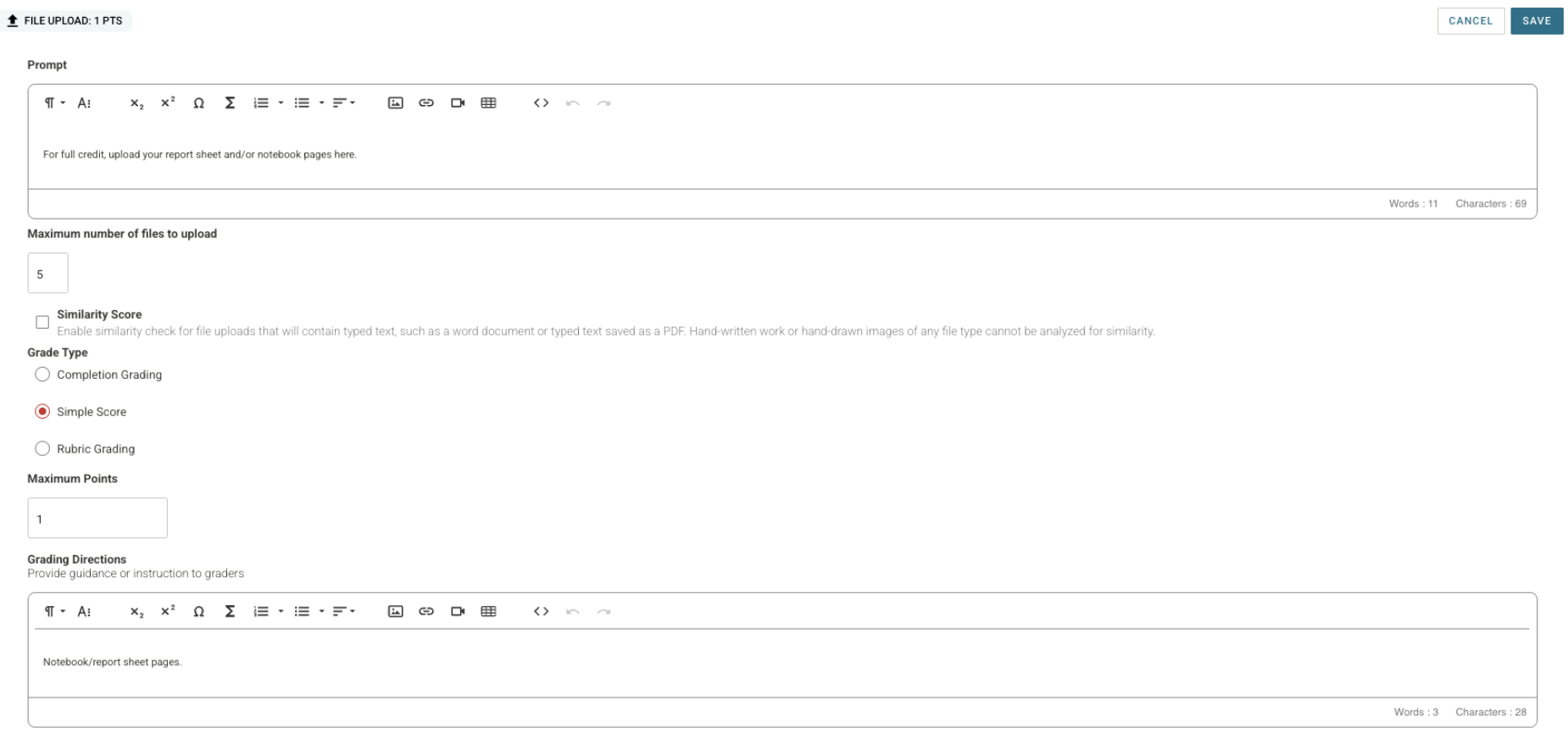
Using Rubric Grading: You can use rubrics for Essay and File Upload questions. There are three rubric types:
Single Choice: The grader picks one item that matches the student's work.
Points: The grader picks items that add points up or subtract points down.
Multipart: A larger rubric split into two or more categories. Each category can use single choice or points.
AI-Assisted Grading Options
If AI grading is turned on for your course, you will see an Options button in the top right corner of the Definition Tab:
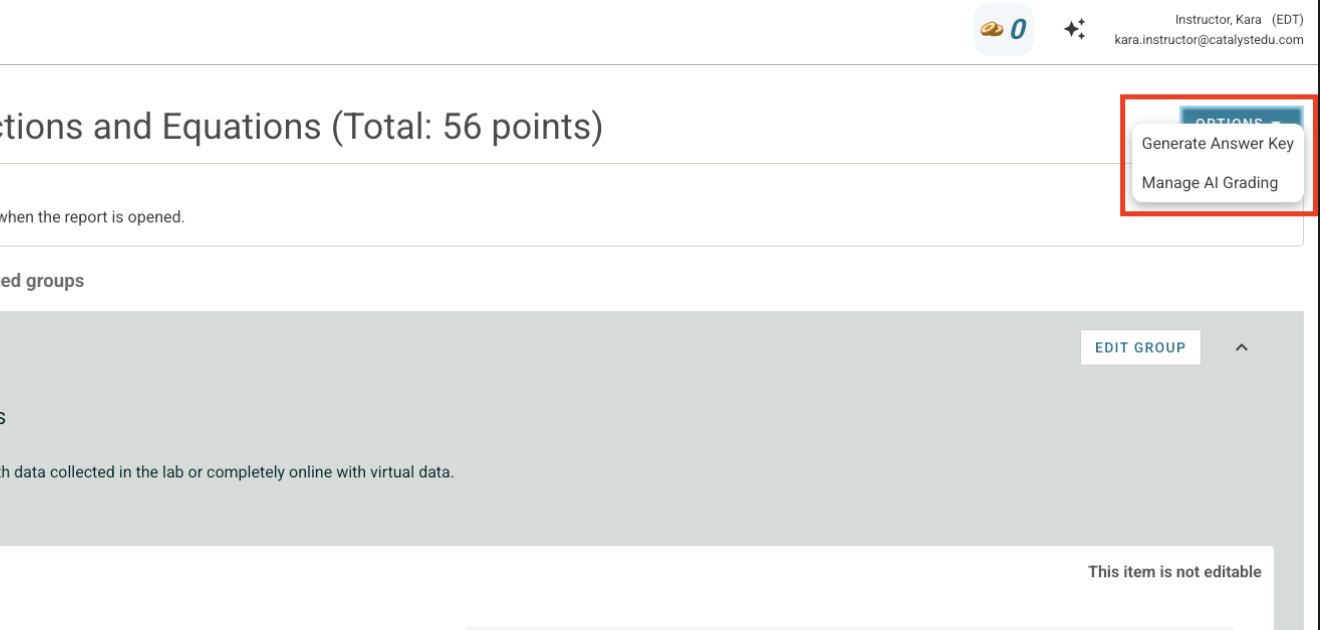
Generate Answer Key: Fills in all correct answers instantly so you can check the assignment or help students.
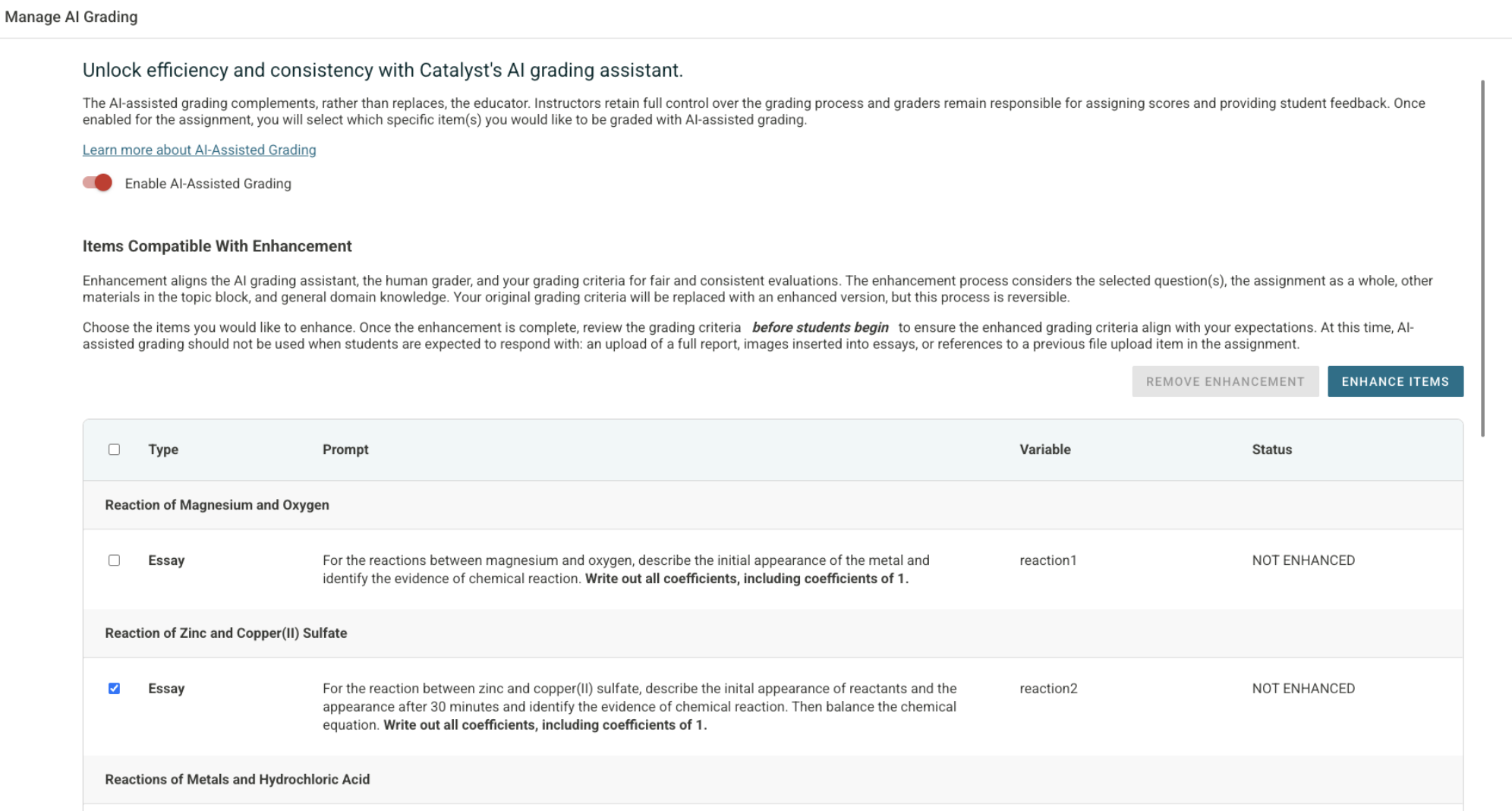
Manage AI Grading: Opens a pop-up window:
Turn on Enable AI Assisted Grading.
Look at the list of questions.
Check the boxes next to the questions you want AI to help grade, then click Enhance Items.
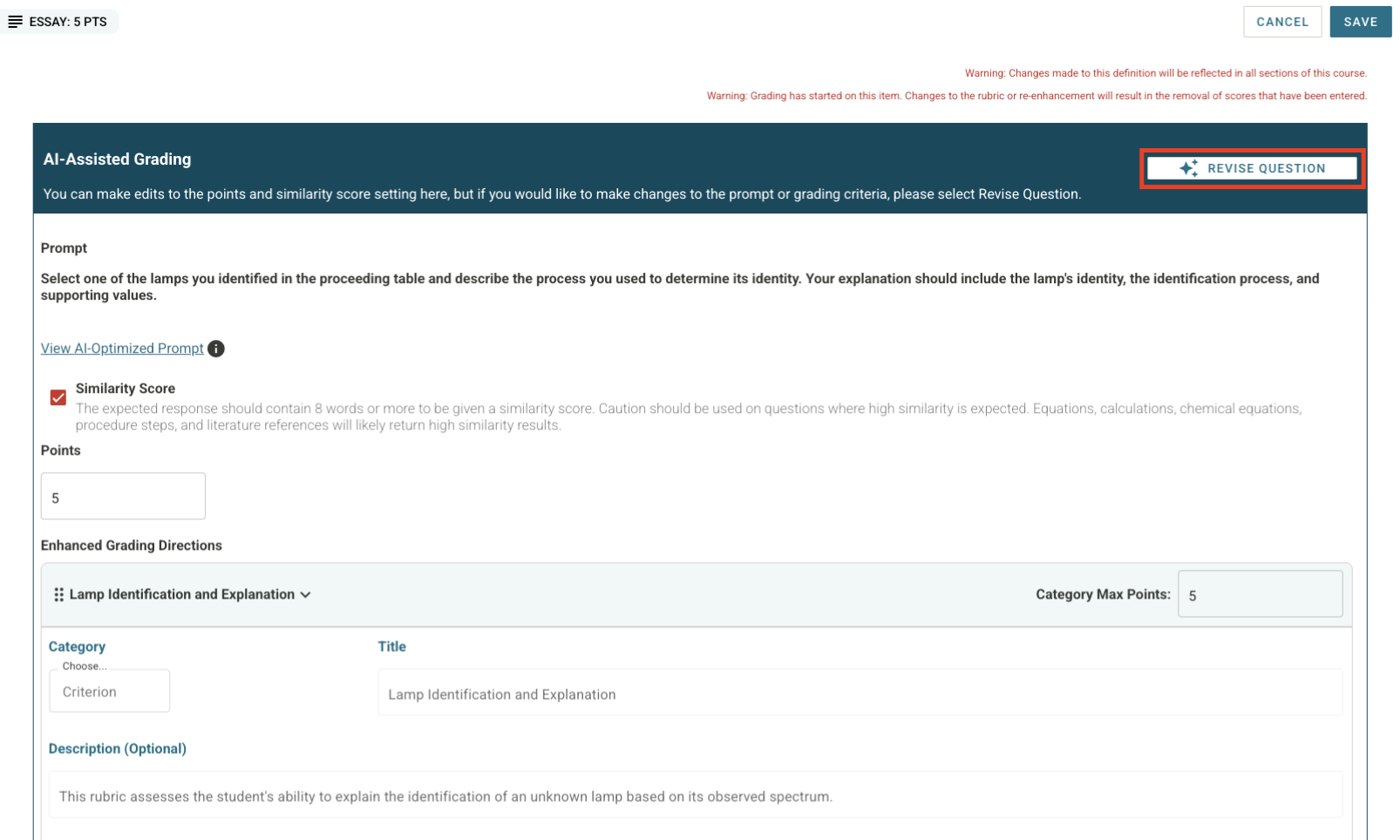
Editing AI Questions: Click Edit Item to change point values or similarity settings. Click Revise Question in the top right corner to edit the question text or grading rules.
Important: You must turn on AI-assisted grading before students start working on the report!
Ready to Build Your Assignments?
Customizing your assignments makes sure your software fits your teaching style. With our platform, you can design the exact learning experience your students need.
If you’re already using our platform, we welcome you to contact your Faculty Success Manager (FSM) for support. And if you’re new, schedule a quick demo below!
Research Source
Study: Attali, Y., & van der Kleij, F. (2017). "Effects of Feedback Timing and Response Mode on Post-Test Performance in Multiple-Choice Quizzes." Frontiers in Psychology, 8, 860.