

Every class has its own unique personality and flow. Whether you teach Chemistry, Biology, Physics, or Psychology, your course has its own distinct rhythm, goals, and teaching style.
We built our platform so you never have to settle for a "one-size-fits-all" layout. When you take control of your course settings, you create a custom learning space built right around your syllabus.
Research shows that simple, organized online courses clear away student confusion so everyone can focus on learning (Tanner, K. D., 2013).
Here is how to move beyond basic setup and run your course like a true power user!
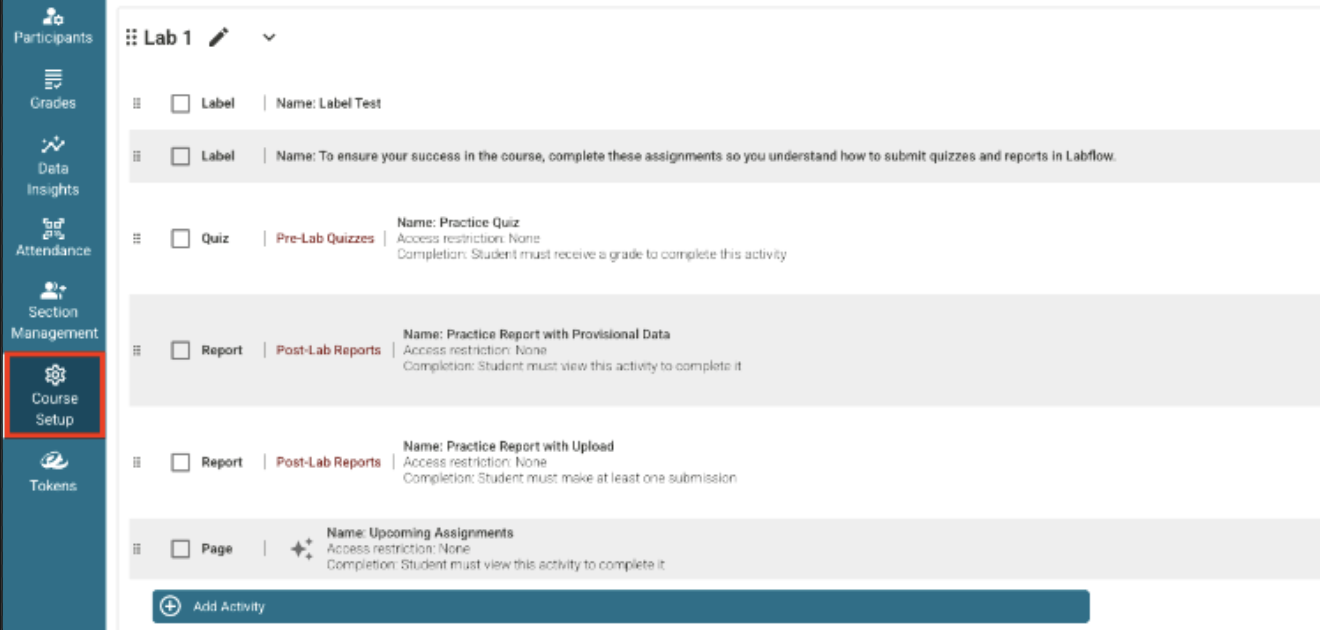
1. The Course Setup Tab: Your Custom Command Center
Think of the Course Setup Tab as your main control room. It turns your course homepage into an editable workspace where you can build, organize, and tweak your entire class in one spot.
Reorganize & Add Custom Content
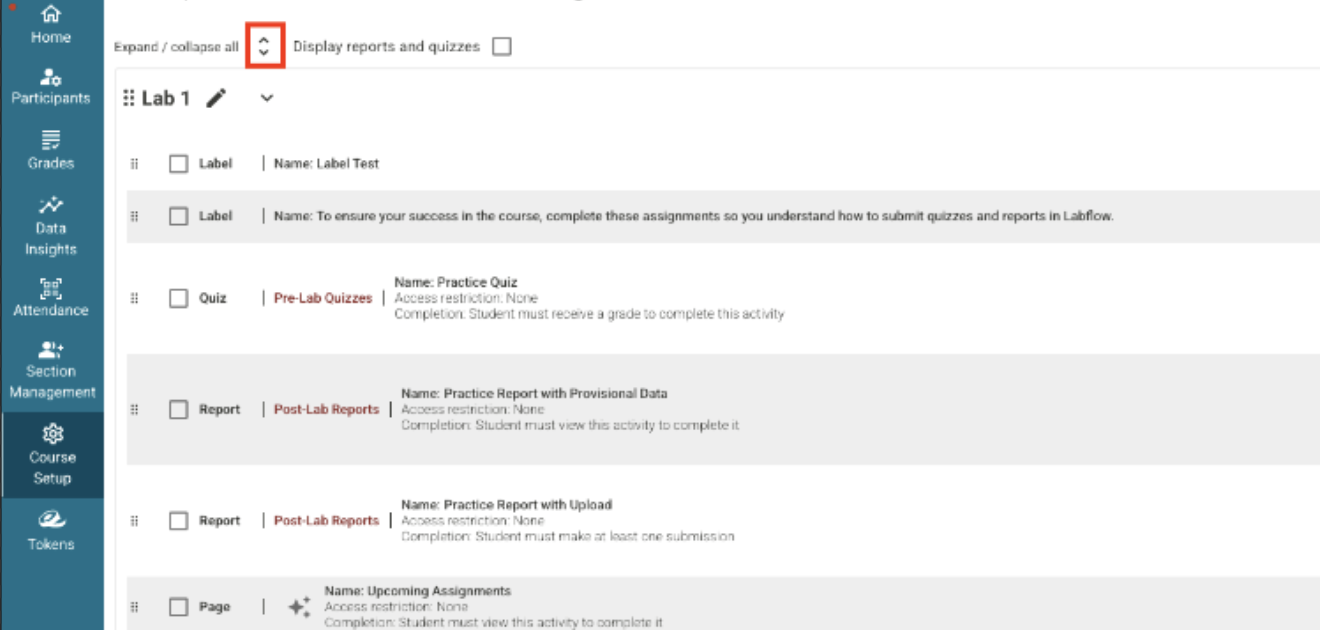
Expand or Collapse All: Look right under your course name in the top left portion of the page. With just one click of this button, you can expand or collapse all of your course content at once. This makes it simple to shrink everything down for a quick overview, or open every folder up when you want to see all your materials.
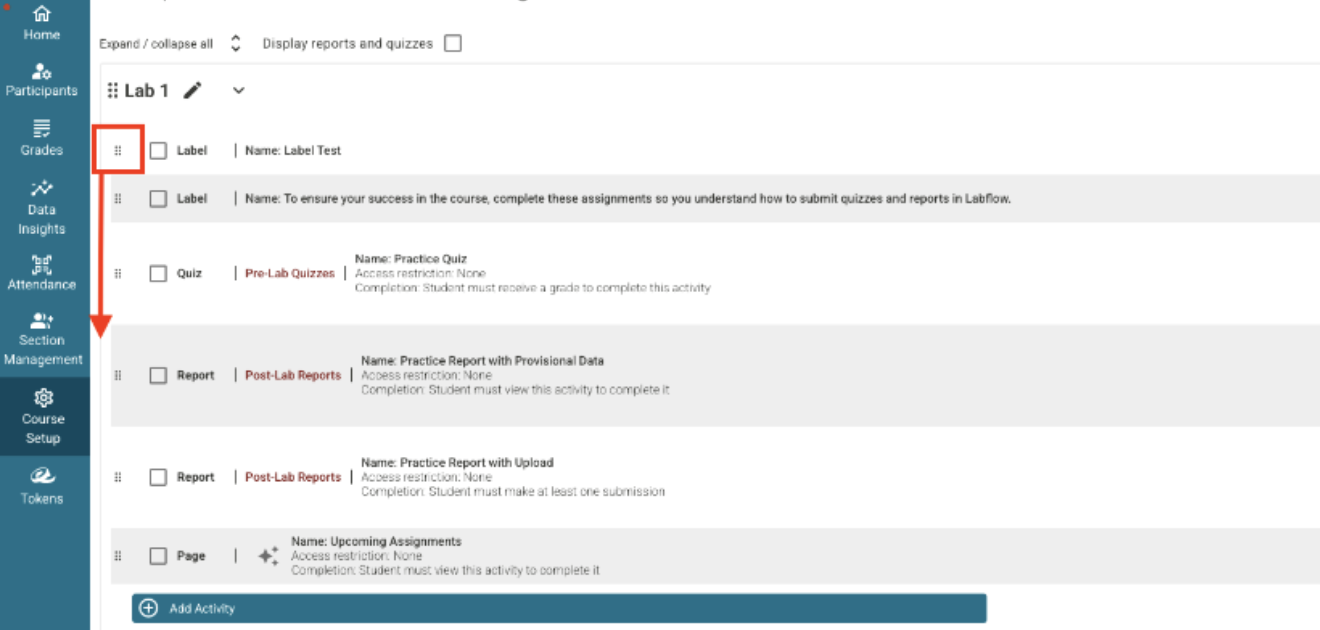
Drag-and-Drop Control: Want to move a safety module to the top or reorganize topics mid-semester? Just click the left side of any tile and drag it where you want it to go.
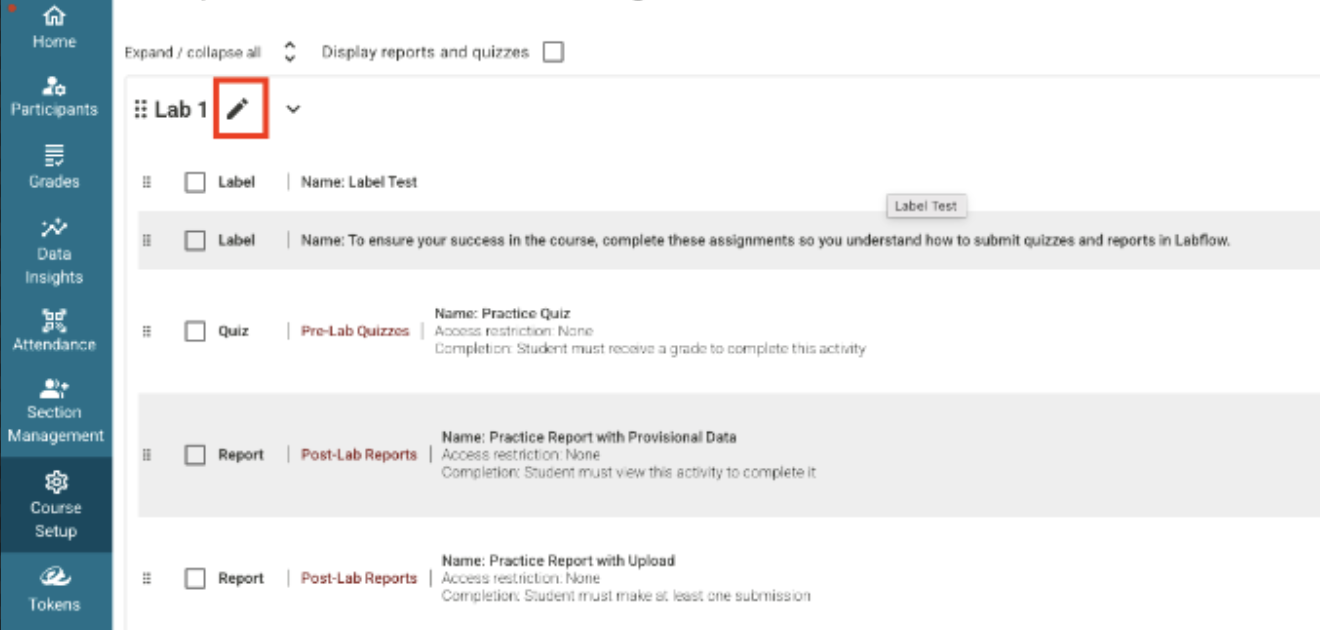
Quick Renaming (The Pencil Icon): You can rename any topic block, label, file, page, or activity in seconds! Simply click the pencil icon next to the item's name, type your custom title, and click the save button when you are finished.
Add Your Own Resources: Scroll down and click the teal Add Activity button to add six different types of content.
Label: Add custom headings or text callouts to keep your page tidy.
Folder: Group activities together and clear up space using a folder.
File: Upload your own PDFs, handouts, or course guides.
Page: Create simple web pages with helpful directions.
Quiz: Add practice checks or high-stakes exams.
Report: Embed custom lab activities and data forms.
Video: Embed safety demos or lecture clips. (Need help adding videos? Reach out to your Faculty Success Manager (FSM) anytime!)
Quick Settings Access
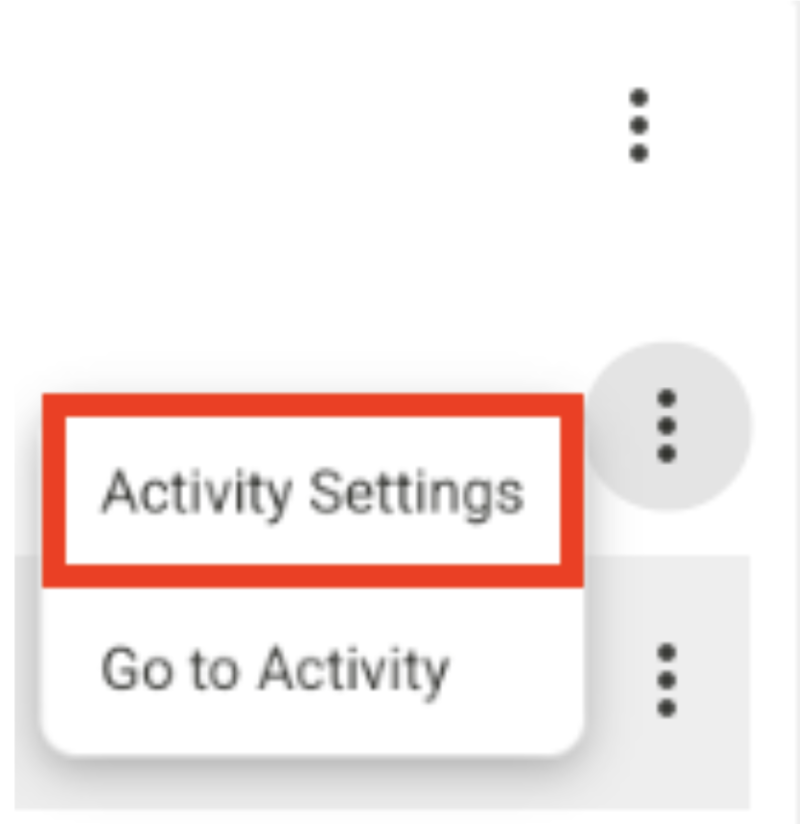
You do not have to dig through menus to change an assignment. Just click the three dots (...) next to any item and pick Activity Settings.
What You Can Change in Activity Settings:
For Quizzes: Add a password, update due dates, set time limits, and choose allowed attempts. Pick a grading method for multiple attempts (highest score, average score, first try, or last try). Set question behavior (immediate feedback for homework vs. deferred feedback for exams) and adjust review options to control when students see their results. You can also scale the maximum grade (like making a 5-question quiz worth 15 points), apply late penalties, hide or reveal the assignment, set access restrictions (requiring students to finish another task first), define completion rules, enable Respondus LockDown Browser, and tweak token settings.
For Reports: Allow provisional data (which you can turn on for specific groups or students), turn on Turnitin plagiarism checks, change due dates, set a scaled score, and apply late penalties. Set try limits and create attempt penalties (as flat points or percentages). Turn on printable previews so students can print a blank copy to bring to class. You can also control feedback visibility, set access restrictions, set completion rules, turn on group work for shared submissions, and manage tokens.
Due Dates & Accommodations Made Simple
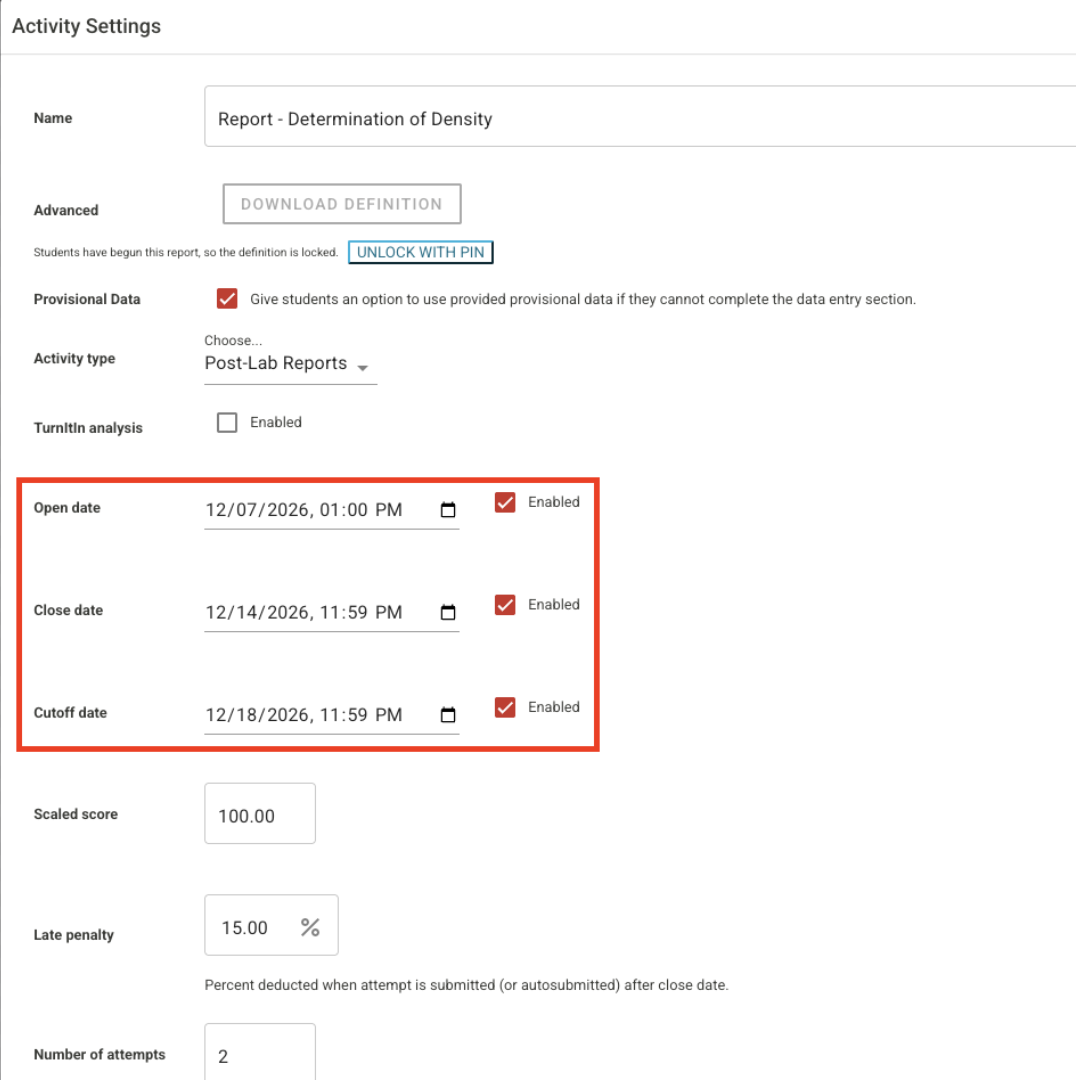
All your schedule controls live inside the settings of your reports and quizzes across three clear tabs.
Settings Tab (Universal Rules):
Set main Open, Close, and Cut-off dates for your entire class, plus late penalties.
Click on the three-dot button, Activity Settings, and then update your due dates within the settings.
Click Save Changes at the button of the settings window.
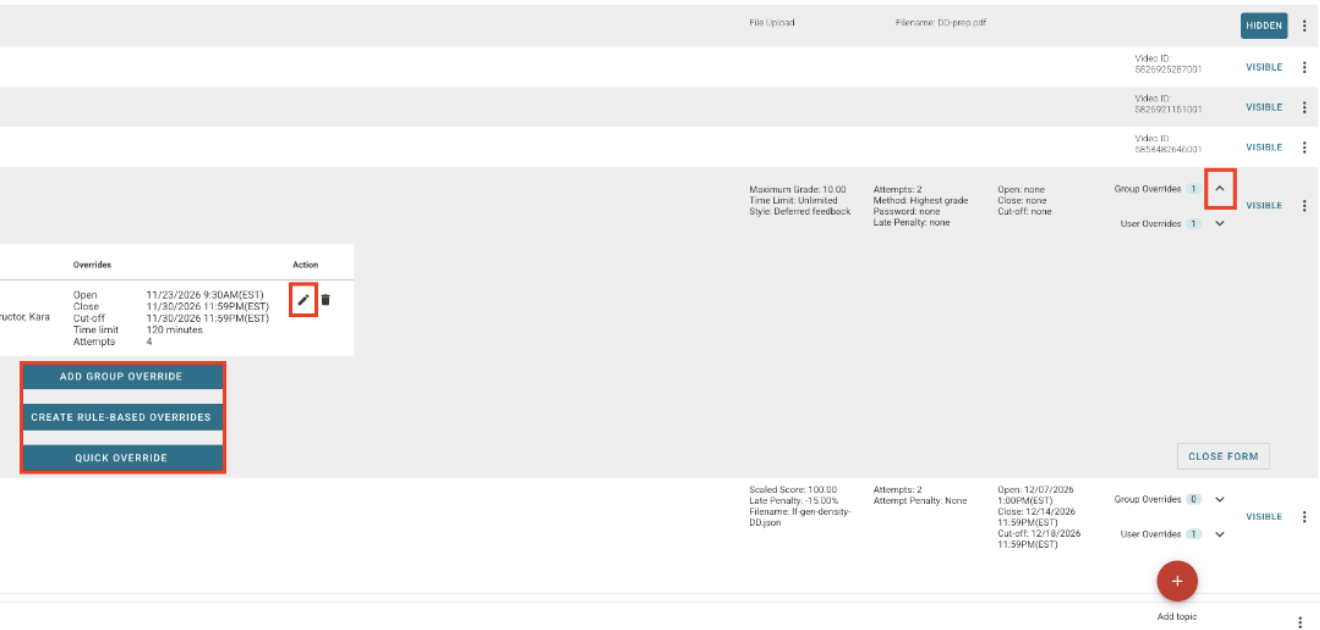
Group Overrides Tab (Section Management): Set different deadlines for different class sections. Use rule-based overrides for recurring schedules, or use the quick override button to grant a fast extension to one group.
1. Click on the carrot button next to Group Overrides to expand this section.
2. If you want to add a new Group Override, click Add Group Override.
3. If you wish to edit an existing Group Override, click the pencil icon.
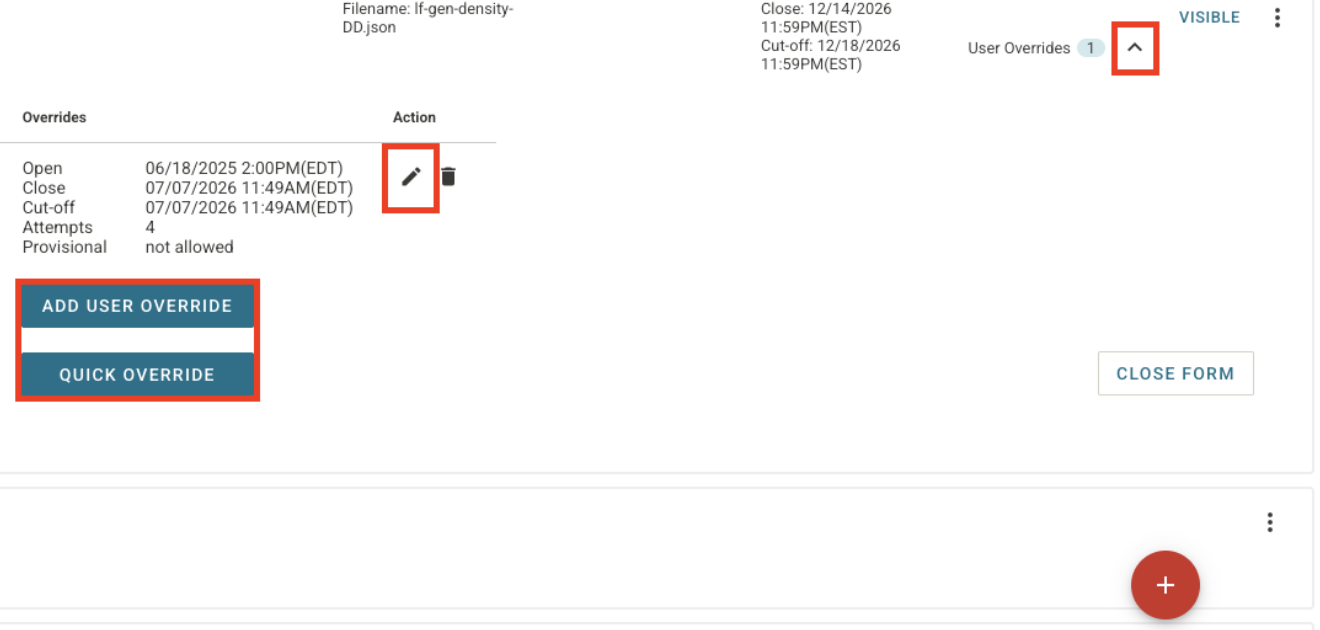
User Overrides Tab (Individual Accommodations): Grant extra time, makeup work, provisional data, or extra attempts to individual students without changing rules for everyone else.
How the Due Date Hierarchy Works
To keep deadlines clear and avoid rules clashing, we follow a simple 1-2-3 priority order:
User Overrides (Top Priority): This rule always wins over everything else.
Group Overrides (Medium Priority): This wins over universal settings, but steps aside if a user override exists.
Settings Tab / Universal Rules (Baseline Default): Applies to everyone unless you create a group or user override.
Quick Example: If you set a due date in the universal Settings Tab and set a due date in Group Overrides, the system ignores the universal date for students in that group. The Group Override date always wins!
Time-Saving Bulk Actions
Update settings for many assignments at once instead of clicking them one by one:
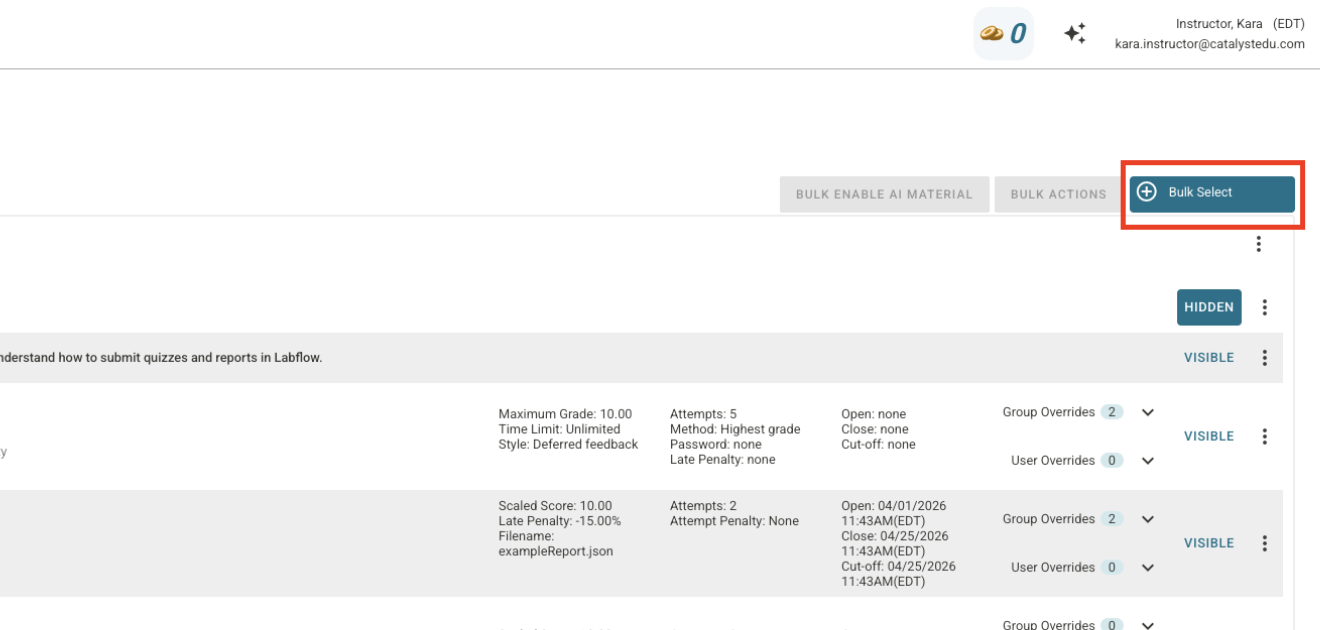
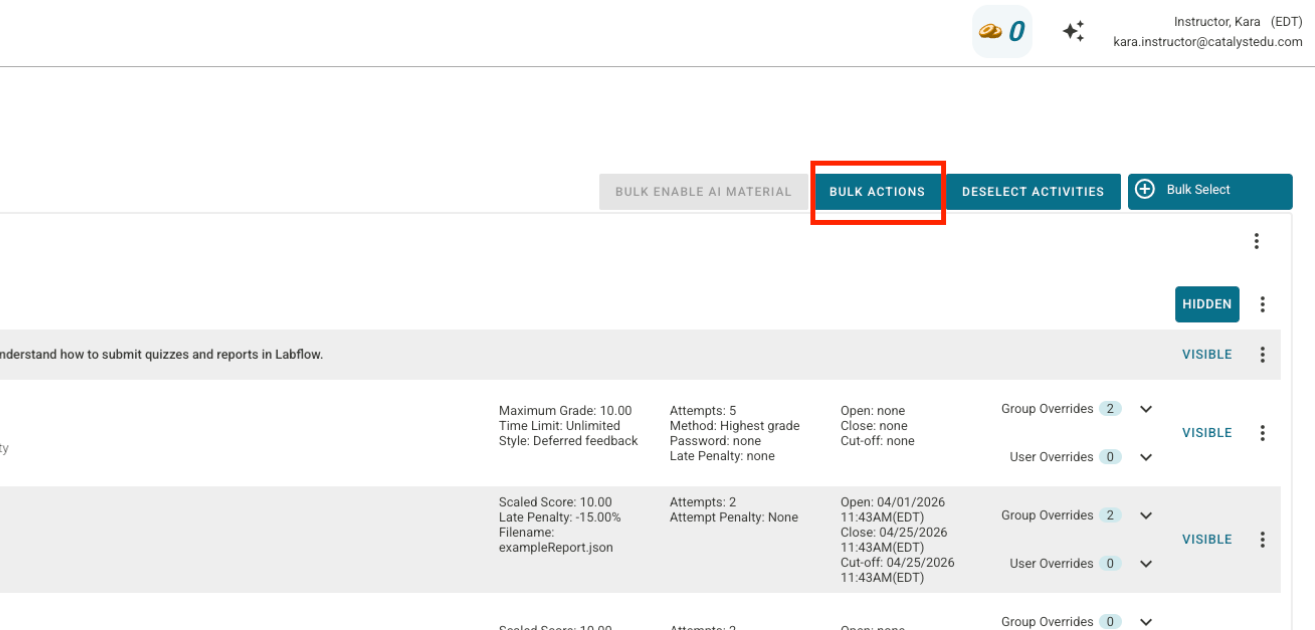
At the top of the Course Setup page, click Bulk Select and pick an activity type (or check the boxes next to specific assignments).
Click Bulk Actions.
Make your updates in the pop-up box, and your changes will apply to every item you selected!
Important Reminder: You cannot bulk-edit an assignment once a student has started working on it. Be sure to finalize your settings before class opens! (Note: Access restrictions must be set one-by-one on each activity and cannot be set in bulk).
2. Gradebook Power Features
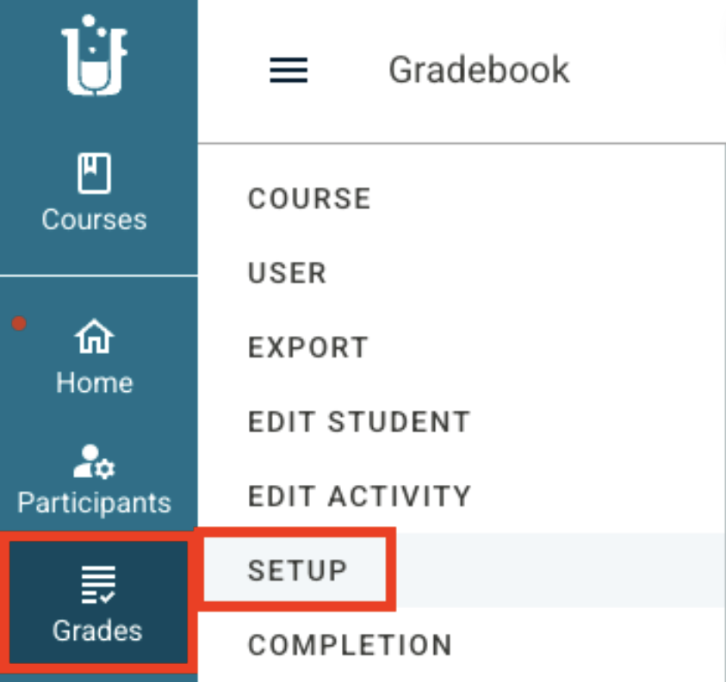
Your gradebook should match your syllabus, not force you into a set formula. Head to the Setup Tab inside your Gradebook to unlock these simple tools:
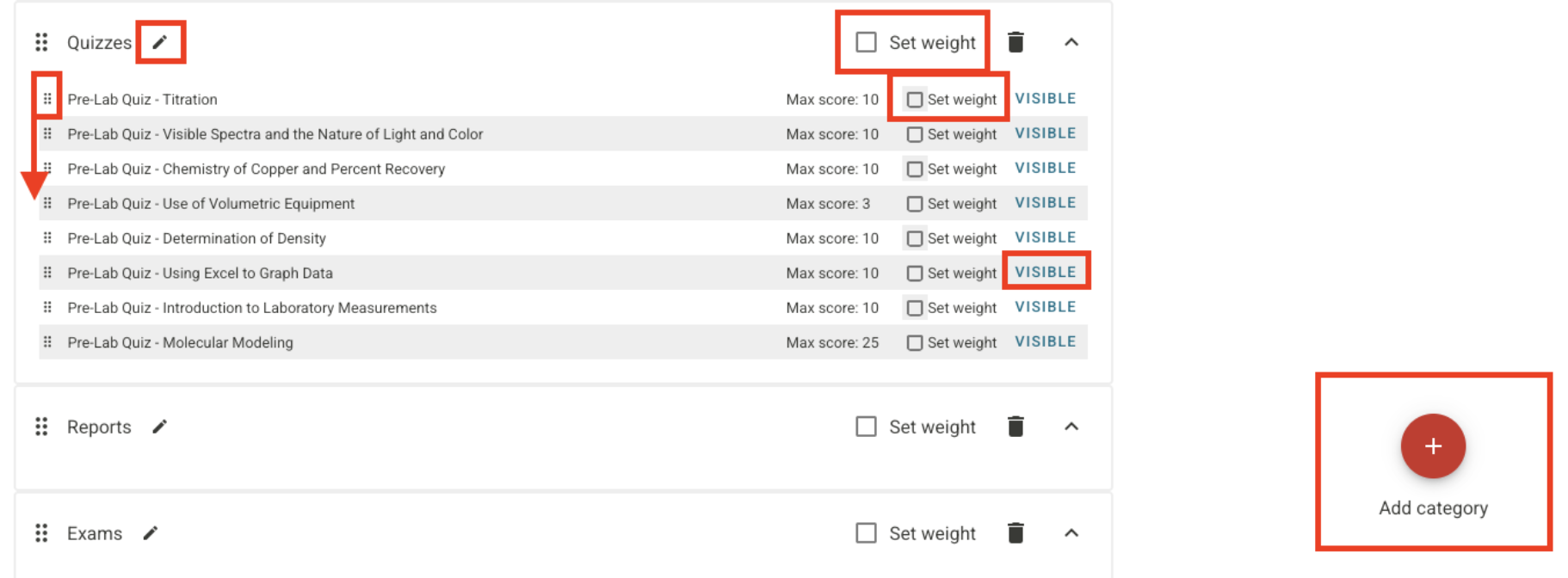
Custom Categories & Weights: Group assignments into categories (like Quizzes, Reports, Exams, etc.) and give each category a set percentage weight. You can also assign custom weights to individual assignments for complete control over your final grades.
Hide or Show Grades: Keep grades hidden while you finish grading, then flip them to visible when you are ready to share results with the class.
Reorder Columns: Drag gradebook columns around so they match the order of your schedule.
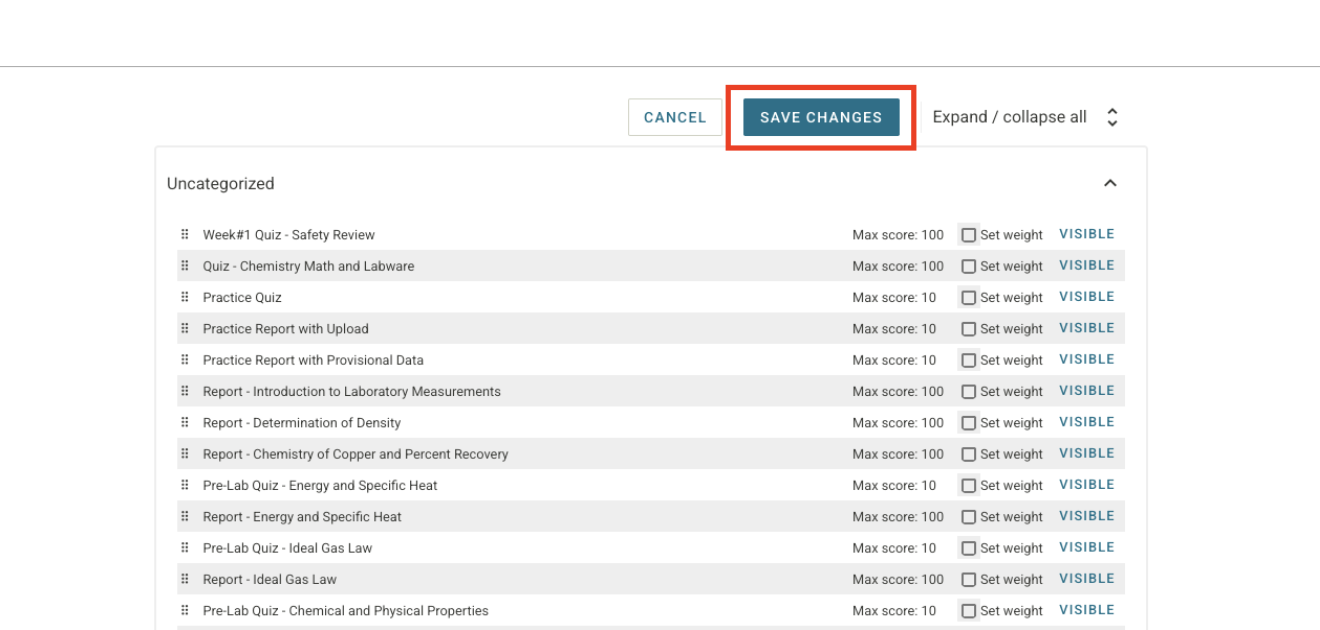
Smart Reminder: Always click Save Changes at the top of the screen on the Gradebook Setup tab before leaving the page!
3. Build a Token Economy
Keep students motivated and build great habits by setting up a custom token reward system.
Custom Token Setup: Go to the Token Configuration tab inside Token Management to make your own rules.
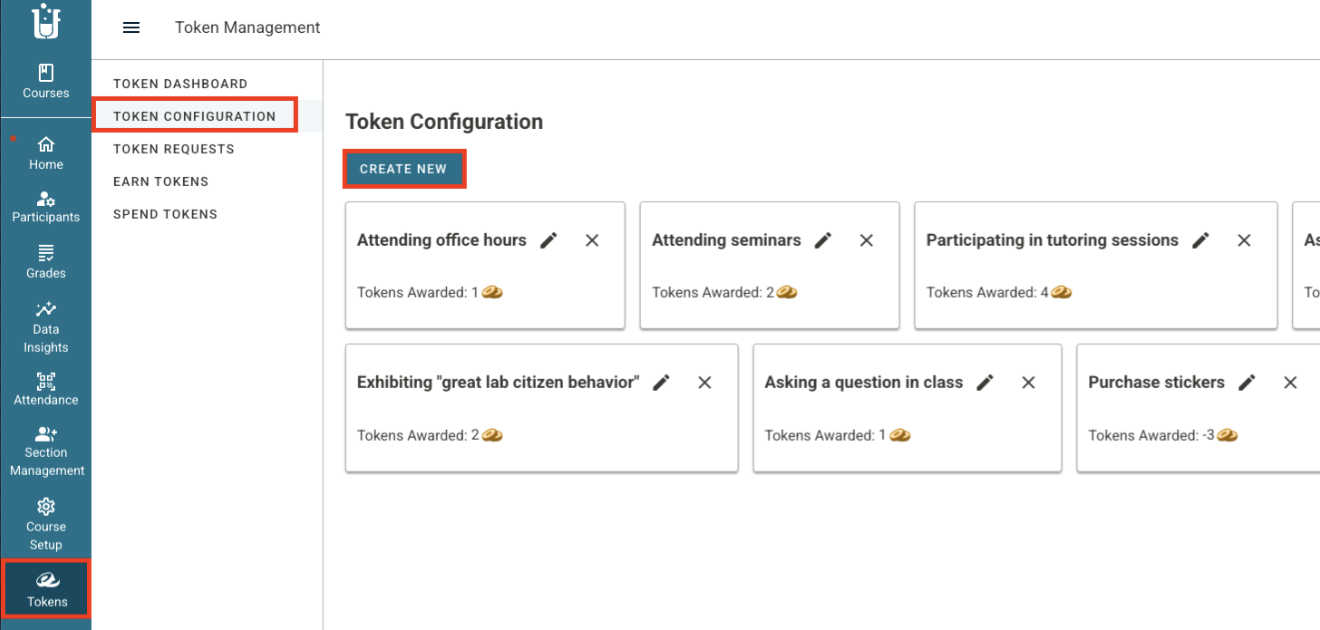
Earning Rules: Reward students for coming to office hours, asking great questions, or completing extra practice tasks. These options show up right on your students' Earn Tokens tab.
Spending Rules: Create custom rewards by using a negative number for the token value.
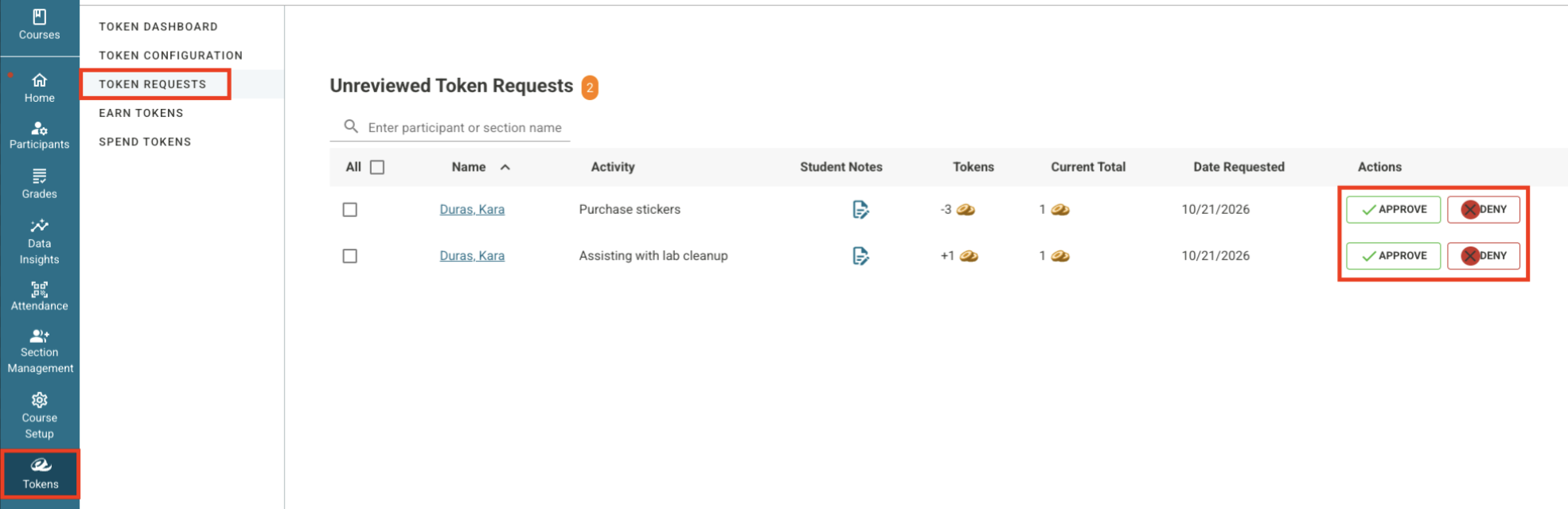
Request Management: Use the Token Requests tab to review and approve student requests in seconds.
Automated Tokens (Save Tons of Admin Work!): You can also set up automatic token rewards and spending rules for specific activities.
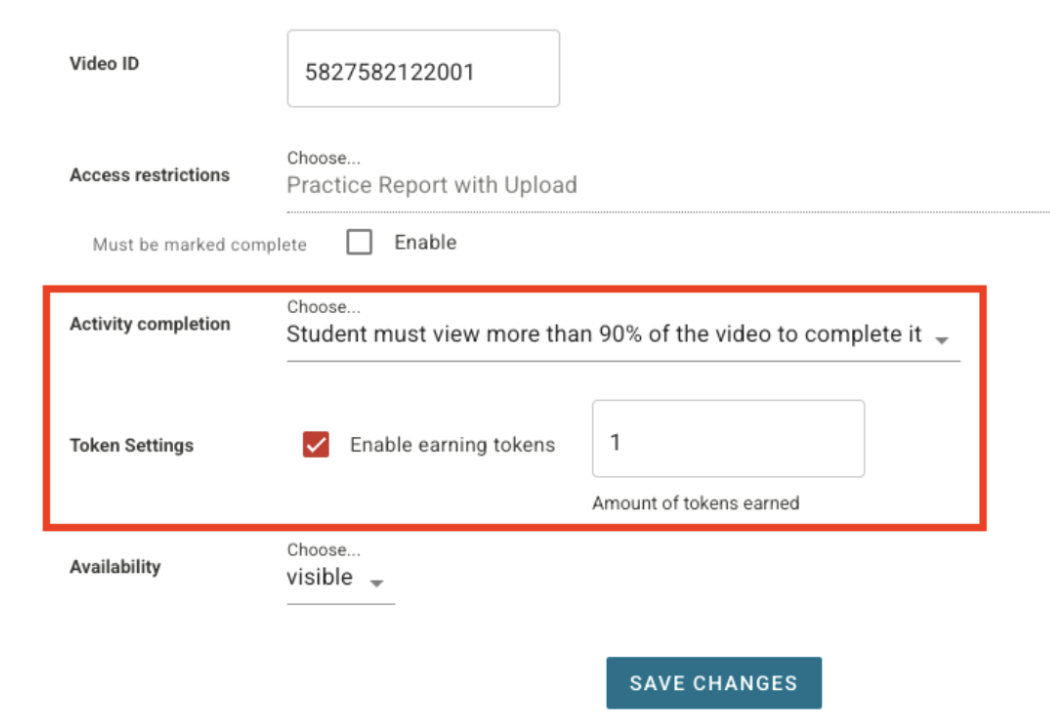
Videos: Let students earn tokens automatically for watching a set percentage of a video
Quizzes: Students can earn tokens for turning work in early or scoring above a grade target you choose.
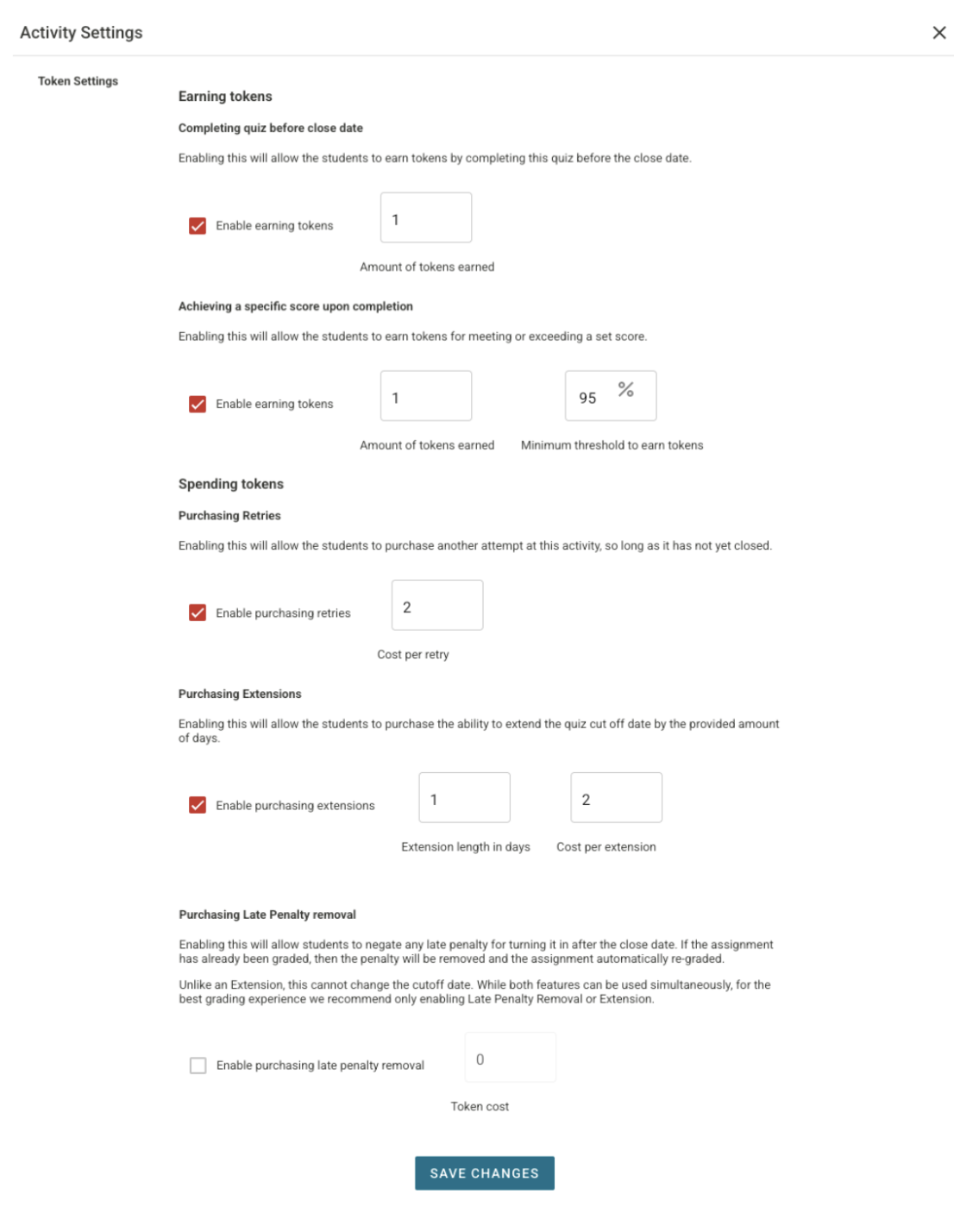
Reports: Students get the same earning options as quizzes, except for grade targets. Since reports have manually graded parts, leaving out grade targets keeps grading fair across all sections.
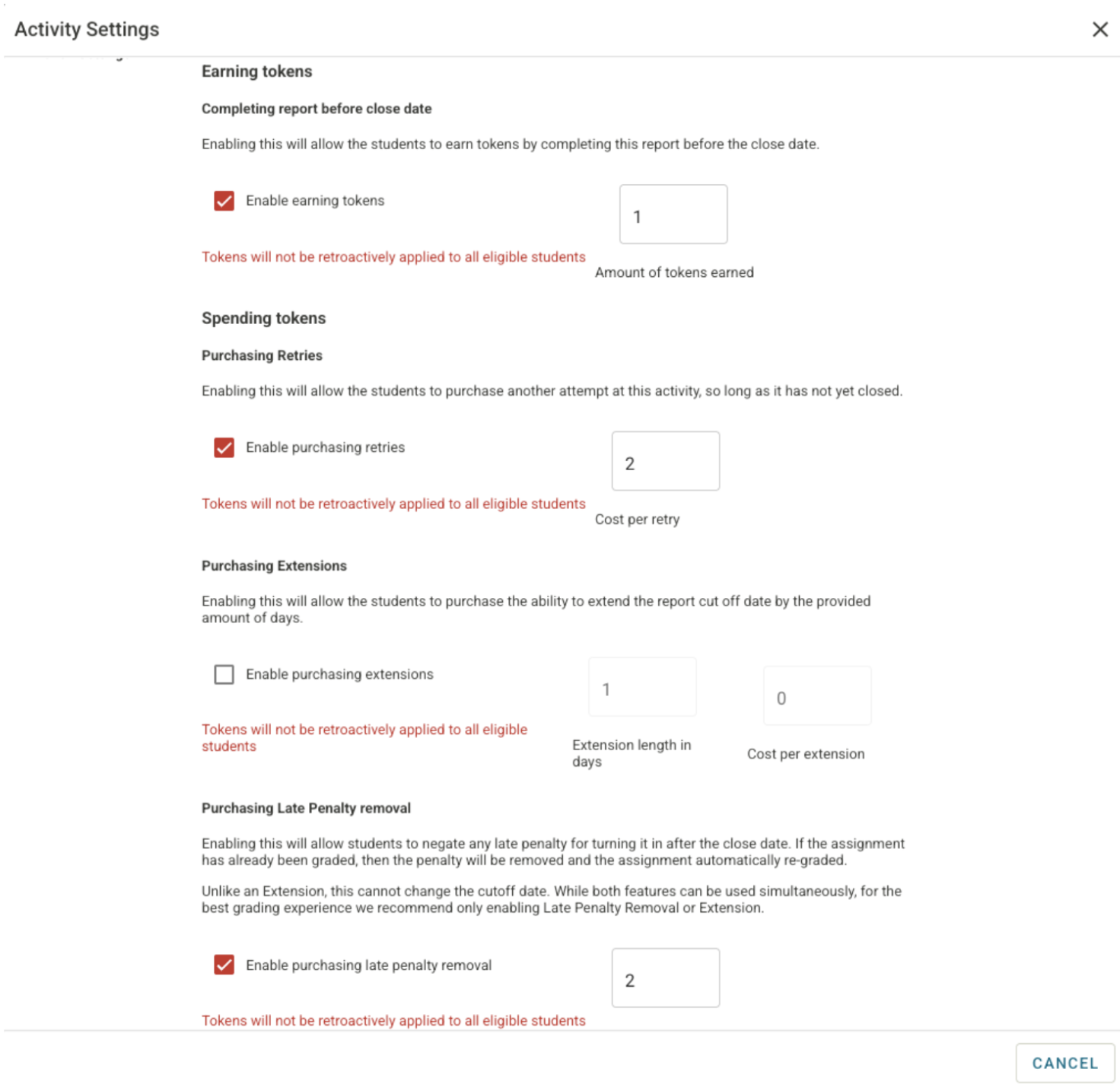
Self-Serve Extensions & Retries: For quizzes and reports, students can spend tokens to unlock retries, clear late penalties, or grant themselves automated deadline extensions (for a timeframe you set).
Why Instructors Love Automated Extensions
Students can choose to spend tokens for an extension all on their own,without ever emailing you to ask permission. The system grants the extension instantly. This single feature eliminates dozens of daily extension emails, freeing up your inbox during busy weeks.
Instructor Hack
Zero-Point Assignments with High Completion Want students to complete a practice task without affecting their overall course grade? Set the activity's scaled score to 1, add a token-earning reward for finishing it, and set the assignment's weight to 0% in the Gradebook. Students get the boost of earning tokens, while your official grade calculations stay completely untouched!
Super User Rule
Balance Your Token Budget Try to give students more ways to spend tokens than ways to earn them. If students hoard a pile of tokens with nothing fun to spend them on, they lose motivation!
4. Ground Your Helper Bot
Use a built-in AI assistant for your students. Every user, instructors, teaching assistants, and students, can open the helper bot anytime by clicking the sparkle icon in the top right-hand corner of the screen (right near your name).
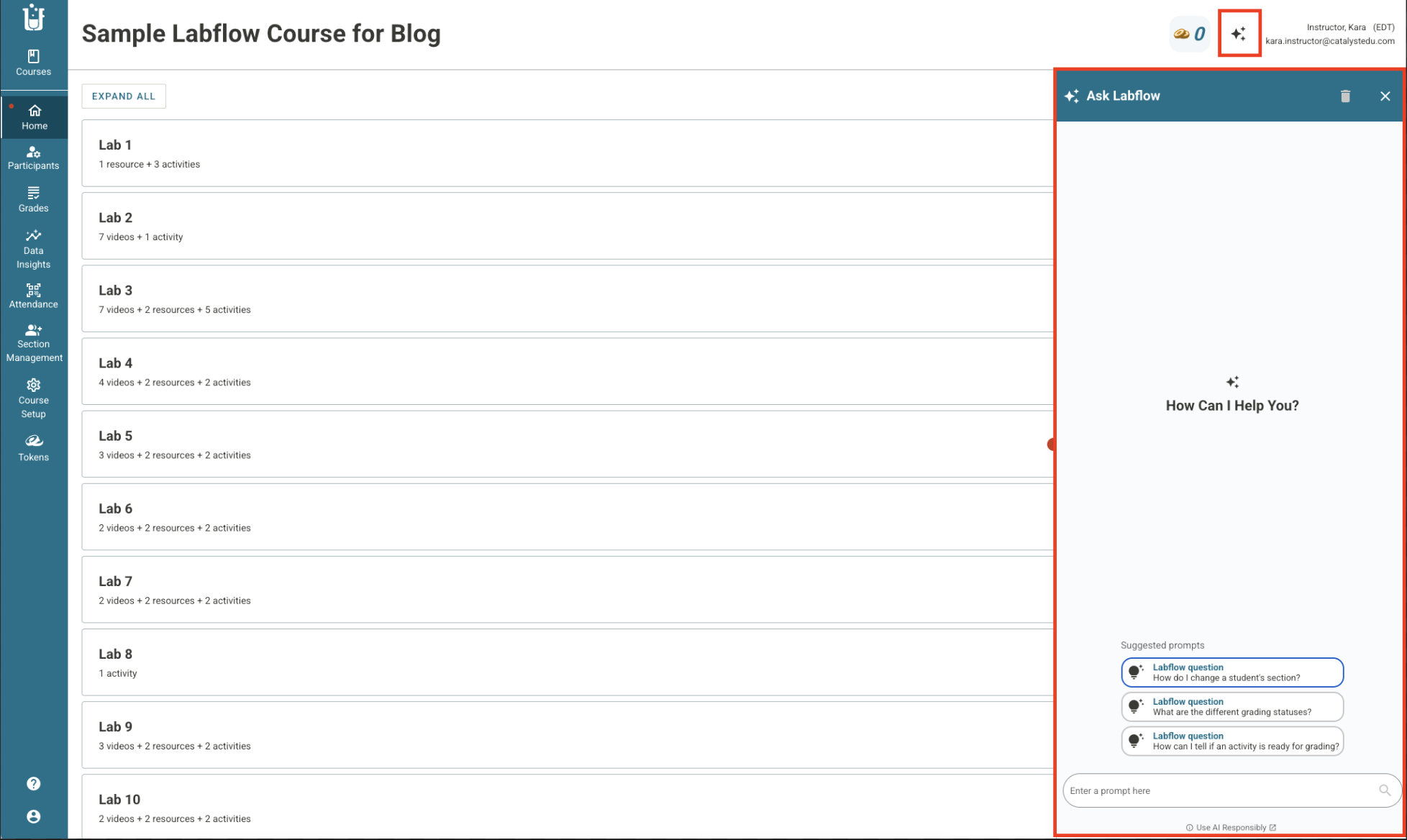
How the Bot Works Out of the Box (Zero Hallucinations!)
By default, the helper bot is pre-loaded with technical guides and platform navigation help.
If you do not add any extra custom materials, the bot sticks strictly to answering technical "how to use the platform" questions.
Because the bot has zero creative freedom, it will never make up false answers or "hallucinate" information.
How to Ground the Bot with Your Own Course Files
Want the bot to answer questions about your syllabus, office hours, or lab safety rules? Ground it with your own materials in just two clicks.
Go to your Course Setup Page.
Find any document or resource you want the bot to learn from (like your course syllabus).
Click the sparkle icon next to that document.
The sparkle icon will turn from gray to purple. That purple icon lets you know the bot is now actively using that document to answer student questions with 100% accuracy!
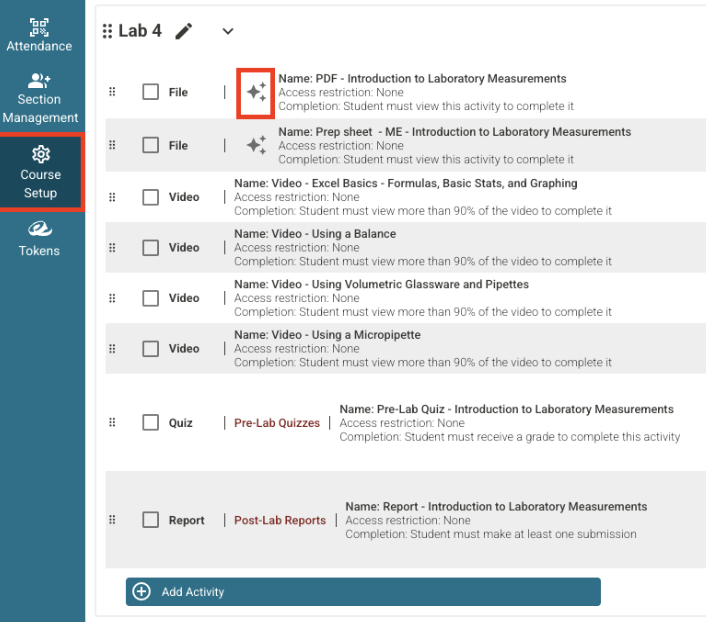
AI Secret Weapon: Hidden TA Guides You can add grounding materials to the bot even if those documents are hidden from students. For example, upload a Grader’s Guide or rubric, keep the file hidden on your Course Setup page, and click the sparkle icon to turn it purple. The AI helper bot will instantly learn your grading guidelines to help your TAs and graders, while students never see the hidden file!
Try Tutor Mode: We recently launched Tutor Mode, an optional feature where the bot guides students through tough content-related questions like an interactive AI teaching assistant.
Ready to Build Your Ultimate Course Experience?
Tailoring your course policies, gradebook weights, token economy, and AI helper bot puts you firmly in the driver's seat. You aren't just using an online platform. You are creating a seamless, high-powered learning environment that works for you and inspires your students every single day.
Log in today, unleash your inner Super User, and start customizing a course experience both you and your students will love!
If you’re already using our platform, we welcome you to contact your Faculty Success Manager (FSM) for support. And if you’re new, schedule a quick demo below!
Citation (Course Structure & Layout): Tanner, K. D. (2013). "Structure Matters: Twenty-One Teaching Strategies to Promote Student Learning and Cultivate Classroom Equity." CBE—Life Sciences Education, 12(3), 322–331.